Activity Monitor
TeamsEnterpriseUnified operational syslog for the controller. View every operation across 9 data sources in a single chronological timeline with real-time updates, category filtering, and detailed event inspection.
Overview
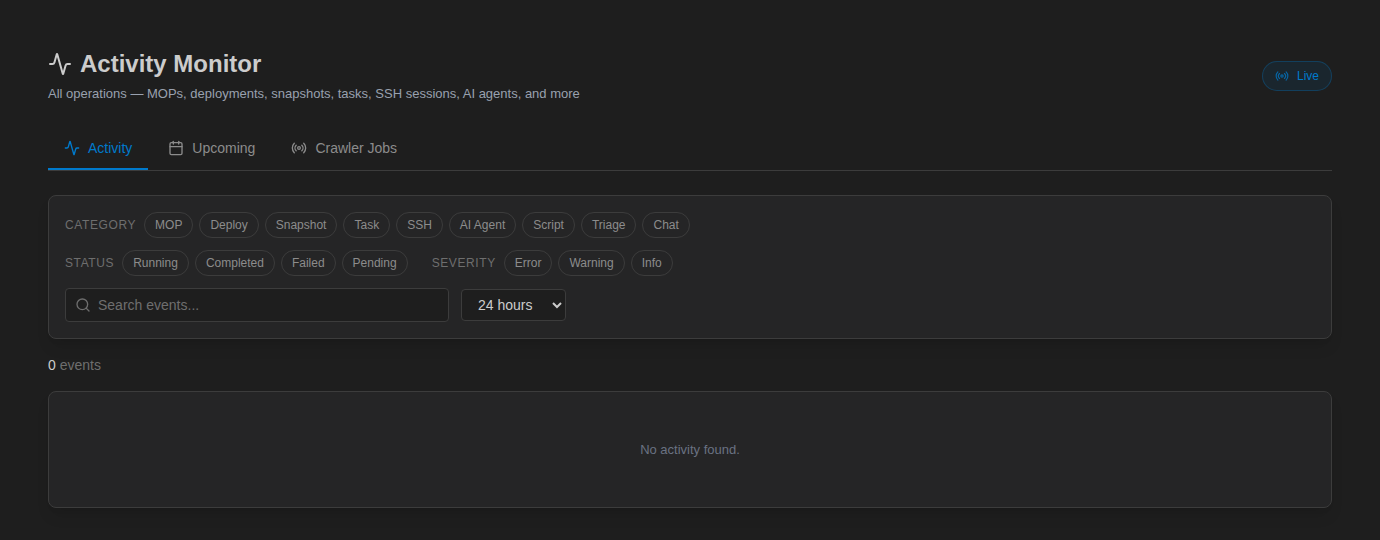
The Activity Monitor is the unified operational syslog for the NetStacks Controller. It replaces the previous Job Monitor with a single chronological timeline that aggregates events from every operational subsystem — MOP executions, config deployments, scheduled tasks, SSH sessions, AI agent runs, and more — into one searchable, filterable view.
Instead of checking separate pages for deployment status, task history, and session logs, the Activity Monitor brings everything together. Every operation that happens on the controller appears here, tagged by category, severity, user, and status, with expandable detail panels showing category-specific information.
Key capabilities include:
- 9 data sources — MOP executions, config deployments, config snapshots, scheduled tasks, SSH sessions, AI agent runs, script executions, alert triage (plugin), and conversation audit.
- Real-time updates — Live mode auto-refreshes every 5 seconds with a pulsing indicator so you always see the latest activity.
- Multi-dimensional filtering — Filter by category, status, severity, user, time range, and free text search simultaneously.
- Expandable detail rows — Click any event to see category-specific details: per-device results for deployments, tool call traces for AI agents, connection metadata for SSH sessions.
- Upcoming schedule — A dedicated tab shows future scheduled task runs so you can see what is coming next.
Viewing the Activity Monitor requires the admin.activity permission. Users with the Admin role have this permission by default. Custom roles can be granted access through Roles & Permissions.
Data Sources
The Activity Monitor aggregates events from 9 distinct data sources across the controller. Each source is assigned a category label and icon color for quick visual identification in the timeline.
| Category | Color | Description | Example Events |
|---|---|---|---|
MOP Execution | Purple | Method of Procedure step-by-step execution runs | MOP “DC1 Firmware Upgrade” started on 12 devices, step 3/8 completed, MOP finished with 2 warnings |
Config Deployment | Blue | Configuration pushes to devices via templates or stacks | Stack “dc1-core-bgp” deployed to 4 devices, template render failed on core-sw-03, rollback triggered on dist-rtr-01 |
Config Snapshot | Cyan | Running config captures from devices (manual or scheduled) | Snapshot captured from core-rtr-01 (IOS-XR), scheduled snapshot batch completed for site DC1 (48 devices), diff detected on fw-01 |
Scheduled Task | Amber | Cron-based recurring tasks managed by the task scheduler | Task “nightly-backup” started, task “weekly-compliance-check” completed, task “snmp-poll-all” failed (timeout) |
SSH Session | Green | Interactive SSH/Telnet sessions through the controller proxy | Session opened to core-rtr-01 by jsmith, session orphaned (user disconnected), session reconnected after 45s |
AI Agent | Violet | Autonomous AI agent task runs using the ReAct execution loop | Agent “investigate-bgp-flap” started, tool call: ssh_exec on core-rtr-01, agent completed with 6 tool calls in 34s |
Script Execution | Teal | Jinja2 template script renders and executions against devices | Script “show-bgp-summary” executed on 3 devices, script output collected from dist-sw-01, script failed on fw-02 (auth error) |
Alert Triage | Red | Alert ingestion and AI-driven triage from the alerts plugin | Alert received: BGP peer down on core-rtr-02 (critical), AI triage assigned severity P1, alert auto-resolved after recovery detected |
Conversation Audit | Gray | AI chat conversation logging for compliance and review | Chat session started by jsmith (model: claude-sonnet), 14 messages exchanged, conversation exported to knowledge base |
Alert Triage events only appear when the Alerts plugin is installed and enabled. If the plugin is not active, the Alert Triage category chip is hidden from the filter bar. All other 8 data sources are part of the controller core and always available.
Filtering
The Activity Monitor provides multiple filter dimensions that can be combined to narrow down exactly the events you need. All filters are applied server-side for performance, and the URL updates with filter state so you can bookmark or share specific views.
Category Chips
The top of the timeline displays a row of category chips — one for each data source. Chips support multi-select: click to toggle individual categories on or off. When no chips are selected, all categories are shown. Selected chips are highlighted with their category color.
For example, to see only deployment and snapshot activity, click the Config Deployment and Config Snapshot chips. All other categories are hidden from the timeline.
Status Filter
Filter events by their execution status:
- Running — Operations currently in progress (pulsing indicator).
- Completed — Operations that finished successfully.
- Failed — Operations that encountered an error.
- Pending — Operations queued but not yet started (e.g., MOP steps awaiting approval).
Severity Filter
Filter by event severity level:
- Error — Failed operations, connection errors, execution exceptions.
- Warning — Partial failures, degraded results, timeouts with retries.
- Info — Normal operational events (started, completed, connected).
User Filter
Select a specific user from the dropdown to see only their activity. This filters by the user who initiated the operation. System-initiated events (scheduled tasks, auto-triage) show as system in the actor field and can be filtered by selecting the system actor.
Time Range Presets
Quick-select buttons set the time window for the timeline:
- 1h — Last hour. Best for live troubleshooting.
- 6h — Last 6 hours. Good for reviewing a shift's activity.
- 24h — Last 24 hours. Default view on page load.
- 7d — Last 7 days. Weekly operational review.
- 30d — Last 30 days. Monthly trend analysis.
Free Text Search
The search bar performs full-text search across event titles, descriptions, device names, user names, and detail payloads. Search is case-insensitive and matches partial strings. For example, searching core-rtr shows all events involving any device whose name contains that string.
All filters are additive (AND logic). For example, selecting the Config Deployment category + Failed status + 24h time range shows only deployment failures in the last day. This is the fastest way to investigate a deployment incident.
Live Mode
Live mode enables automatic polling so the Activity Monitor stays current without manual refreshing. When enabled, the timeline fetches new events every 5 seconds and prepends them to the top of the list.
Indicators
- A pulsing green dot appears next to the “Live” toggle when live mode is active, confirming that auto-refresh is running.
- New events slide in at the top of the timeline with a brief highlight animation so they are visually distinct from previously loaded events.
- The summary bar counters update in real time as new events arrive.
Toggling Live Mode
Click the Live toggle button in the top-right corner of the Activity Monitor to enable or disable auto-refresh. Live mode is off by default and persists across page navigations within the same session.
Live mode respects all active filters. If you have the AI Agentcategory selected with Running status, live mode only polls for new events matching those criteria. This keeps the view focused during active incident investigation.
Performance
The 5-second polling interval uses a since cursor parameter to fetch only events newer than the most recent event already displayed. This keeps each poll lightweight regardless of total event volume. If the browser tab is backgrounded, polling pauses and resumes when the tab regains focus.
Event Details
Each row in the Activity Monitor timeline is expandable. Click a row to reveal a detail panel that shows category-specific information about the event. The detail layout varies depending on the data source.
Config Deployment Details
Expanded deployment events show a per-device results table:
- Device name and IP address
- Status per device (success, failed, skipped, rolled back)
- Commands sent count and duration
- Error message if the device push failed
- Diff preview — link to the config diff for the changes applied
AI Agent Details
Expanded AI agent events show the full ReAct execution trace:
- Task description — the original prompt or task definition
- Tool calls — ordered list of each tool invocation with input parameters and output summary
- Reasoning steps — the agent's thinking between tool calls
- Final result — the agent's conclusion or output
- Token usage — input/output tokens and estimated cost
SSH Session Details
Expanded SSH session events show connection metadata:
- Device — hostname, IP, and port
- Auth method — password, key, or certificate
- Credential — which vault credential was used (name only, not the secret)
- Duration — total session length
- Orphan events — if the session was orphaned and reconnected, those timestamps appear here
- Bytes transferred — data volume in each direction
MOP Execution Details
Expanded MOP events show the step-by-step execution progress:
- Step list — each step with its status (completed, running, pending, failed, skipped)
- Step output — command output or validation result for completed steps
- Approval status — who approved the MOP and when
- Rollback actions — if any steps triggered rollback, those details appear here
Scheduled Task Details
Expanded scheduled task events show:
- Task type — snapshot, script, compliance check, etc.
- Cron expression — the schedule that triggered the run
- Execution log — stdout/stderr output from the task
- Next run — when the task will execute again
Alert Triage Details
Expanded alert triage events show:
- Alert source — the monitoring system that sent the alert (Prometheus, SNMP trap, syslog, etc.)
- Raw alert payload — the original alert data as received
- Triage result — AI-assigned severity, category, and recommended action
- Linked incident — if the alert was correlated to an existing incident
Summary Bar
The summary bar runs across the top of the Activity Monitor, providing at-a-glance counters for the current filtered view. Counters update in real time when live mode is active.
| Counter | Indicator | Description |
|---|---|---|
| Total Events | Numeric count | Total number of events matching the current filters and time range |
| Errors | Red dot + count | Number of events with failed status or error severity. The red dot draws immediate attention to failures. |
| Running | Pulsing green dot + count | Number of operations currently in progress. The pulsing dot animates to indicate active work. |
The summary bar responds to all active filters. If you select only the Config Deployment category, the counters reflect only deployment events. This makes the summary bar useful as a focused dashboard — for example, filtering to AI Agent + Running shows exactly how many agent tasks are currently executing.
Click the Errors counter in the summary bar to quickly apply the Failed status filter. This is the fastest way to jump to problem events when you see the red dot appear.
Upcoming Tab
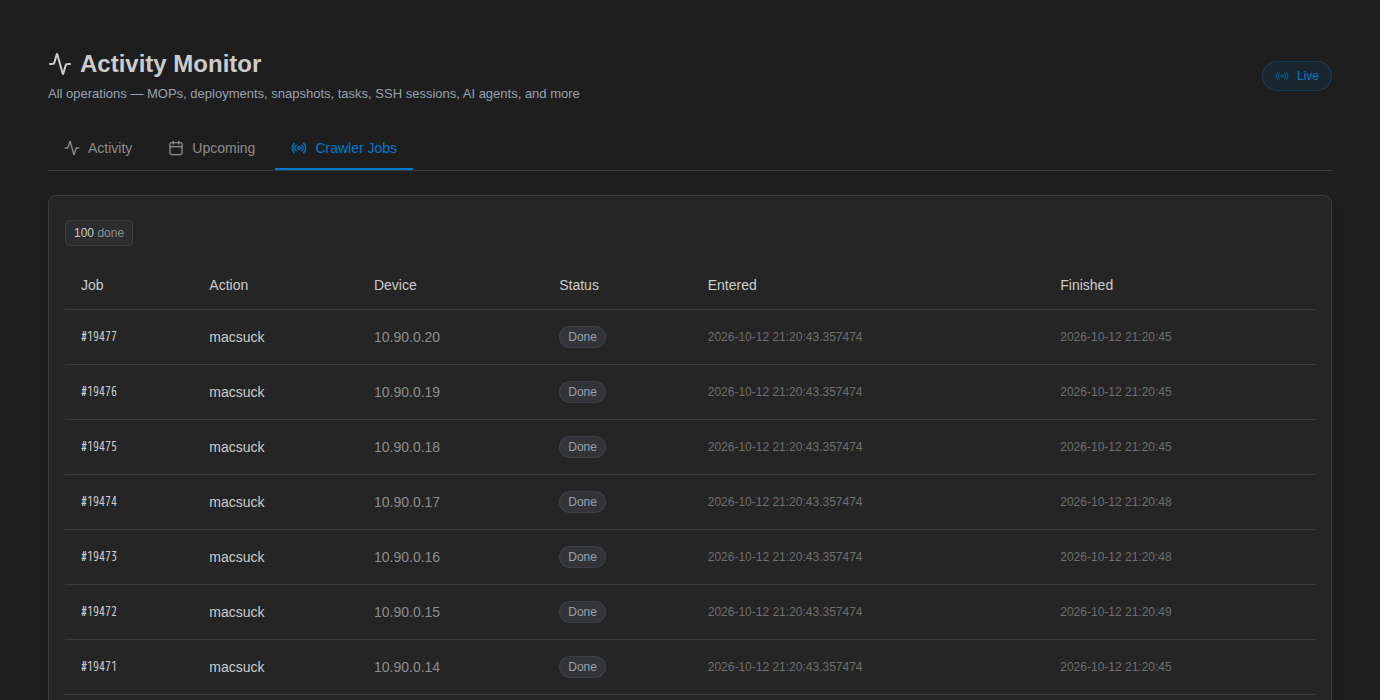
The Activity Monitor has two tabs: Activity (the main timeline) and Upcoming. The Upcoming tab is preserved from the original Job Monitor and shows the schedule of future task runs.
What It Shows
The Upcoming tab lists all enabled scheduled tasks with their next execution time, sorted chronologically (soonest first). Each entry shows:
- Task name — the scheduled task's display name
- Next run — the calculated next execution time based on the cron expression
- Cron expression — the schedule pattern (e.g.,
0 2 * * *for daily at 2 AM) - Task type — snapshot, script, compliance check, etc.
- Last run status — whether the most recent execution succeeded or failed
- Target devices — which devices or device groups the task will run against
Use Cases
- Change window planning — Before starting a maintenance window, check Upcoming to ensure no automated tasks will conflict with manual work.
- Schedule verification — After creating or modifying a scheduled task, check Upcoming to confirm the next run time is correct.
- On-call handoff — Review what automated operations are coming up during your shift so you are prepared for their results.
Only enabled scheduled tasks appear in the Upcoming tab. Disabled tasks are filtered out. To see all tasks including disabled ones, visit Scheduled Tasks.
API Reference
The Activity Monitor data is available through the /api/activityendpoint. This is the same endpoint the admin UI uses, so everything visible in the web interface is accessible programmatically.
GET /api/activity
Fetch activity events with optional filtering. Requires the admin.activitypermission.
Query Parameters
| Parameter | Type | Default | Description |
|---|---|---|---|
categories | string (comma-separated) | all | Filter by category. Values: mop, config_deployment, config_snapshot, scheduled_task, ssh_session, ai_agent, script_execution, alert_triage, conversation_audit |
status | string | all | Filter by status. Values: running, completed, failed, pending |
severity | string | all | Filter by severity. Values: error, warning, info |
user_id | UUID | — | Filter by the user who initiated the operation |
search | string | — | Full-text search across event title, description, device names, and details |
from | ISO 8601 timestamp | 24h ago | Start of the time range (inclusive) |
to | ISO 8601 timestamp | now | End of the time range (inclusive) |
since | ISO 8601 timestamp | — | Cursor for live polling. Returns only events newer than this timestamp. Overrides from/to when set. |
limit | integer (1–200) | 50 | Maximum number of events to return per page |
page | integer | 1 | Page number for pagination |
Example Request
# Get failed config deployments in the last 24 hours
curl "https://netstacks.dc1.example.net/api/activity?categories=config_deployment&status=failed&from=2026-04-09T00:00:00Z&limit=25" \
-H "Authorization: Bearer $TOKEN"Response Format
The response contains an events array and a stats summary object:
{
"events": [
{
"id": "b7e3a1f2-9c4d-4e8a-b6f1-2d3e4f5a6b7c",
"category": "config_deployment",
"title": "Stack "dc1-core-bgp" deployment failed",
"description": "Deployment to 4 devices completed with 1 failure",
"status": "failed",
"severity": "error",
"user_id": "a1b2c3d4-e5f6-7890-abcd-ef1234567890",
"user_email": "jsmith@dc1.example.net",
"started_at": "2026-04-09T14:22:10Z",
"completed_at": "2026-04-09T14:23:45Z",
"duration_ms": 95000,
"details": {
"stack_name": "dc1-core-bgp",
"template_name": "bgp-neighbor-config",
"total_devices": 4,
"succeeded": 3,
"failed": 1,
"devices": [
{
"name": "core-rtr-01.dc1.example.net",
"ip": "10.0.0.1",
"status": "success",
"commands_sent": 12,
"duration_ms": 8500
},
{
"name": "core-rtr-02.dc1.example.net",
"ip": "10.0.0.2",
"status": "success",
"commands_sent": 12,
"duration_ms": 9200
},
{
"name": "dist-rtr-01.dc1.example.net",
"ip": "10.0.1.1",
"status": "success",
"commands_sent": 8,
"duration_ms": 7100
},
{
"name": "core-sw-03.dc1.example.net",
"ip": "10.0.0.5",
"status": "failed",
"error": "Template render error: undefined variable 'bgp_asn' for device",
"duration_ms": 1200
}
]
}
},
{
"id": "c8f4b2a3-0d5e-4f9b-c7a2-3e4f5a6b7c8d",
"category": "ai_agent",
"title": "Agent: Investigate BGP flap on core-rtr-02",
"description": "Completed with 6 tool calls in 34 seconds",
"status": "completed",
"severity": "info",
"user_id": "a1b2c3d4-e5f6-7890-abcd-ef1234567890",
"user_email": "jsmith@dc1.example.net",
"started_at": "2026-04-09T14:20:00Z",
"completed_at": "2026-04-09T14:20:34Z",
"duration_ms": 34000,
"details": {
"task": "Investigate BGP flap on core-rtr-02",
"model": "claude-sonnet-4-20250514",
"tool_calls": 6,
"tokens_in": 12450,
"tokens_out": 3200,
"tools_used": [
"ssh_exec",
"ssh_exec",
"device_query",
"ssh_exec",
"knowledge_search",
"ssh_exec"
],
"result_summary": "BGP session to 10.0.0.6 flapping due to MTU mismatch on ae0.100. Interface MTU is 1500, BGP neighbor expects 9000."
}
},
{
"id": "d9a5c3b4-1e6f-4a0c-d8b3-4f5a6b7c8d9e",
"category": "ssh_session",
"title": "SSH session to core-rtr-01.dc1.example.net",
"description": "Connected via certificate auth, session active for 12m 30s",
"status": "completed",
"severity": "info",
"user_id": "a1b2c3d4-e5f6-7890-abcd-ef1234567890",
"user_email": "jsmith@dc1.example.net",
"started_at": "2026-04-09T14:05:00Z",
"completed_at": "2026-04-09T14:17:30Z",
"duration_ms": 750000,
"details": {
"device_name": "core-rtr-01.dc1.example.net",
"device_ip": "10.0.0.1",
"port": 22,
"auth_method": "certificate",
"credential_name": "dc1-ssh-cert",
"bytes_sent": 4520,
"bytes_received": 128900,
"orphaned": false
}
}
],
"stats": {
"total": 142,
"errors": 3,
"warnings": 8,
"running": 2
},
"page": 1,
"limit": 25,
"total_pages": 6
}Live Polling with the since Cursor
For live mode, the UI stores the timestamp of the most recent event and passes it as the since parameter on the next poll. The API returns only events created after that timestamp:
# Initial load
curl "https://netstacks.dc1.example.net/api/activity?limit=50" \
-H "Authorization: Bearer $TOKEN"
# Response includes events, note the latest started_at timestamp
# Poll for new events (every 5 seconds)
curl "https://netstacks.dc1.example.net/api/activity?since=2026-04-09T14:23:45Z" \
-H "Authorization: Bearer $TOKEN"
# Returns only events newer than the since timestampFiltering by Multiple Categories
# Show only MOP executions and config deployments
curl "https://netstacks.dc1.example.net/api/activity?categories=mop,config_deployment&from=2026-04-08T00:00:00Z" \
-H "Authorization: Bearer $TOKEN"Search with Text Query
# Find all events mentioning a specific device
curl "https://netstacks.dc1.example.net/api/activity?search=core-rtr-02&from=2026-04-01T00:00:00Z&to=2026-04-10T00:00:00Z" \
-H "Authorization: Bearer $TOKEN"Get Running Operations Only
# Check what is currently in progress
curl "https://netstacks.dc1.example.net/api/activity?status=running" \
-H "Authorization: Bearer $TOKEN"Related Features
- Audit Logs — Compliance-focused event log that tracks administrative actions (user management, credential access, settings changes). Activity Monitor tracks operational execution; Audit Logs track who changed what.
- Scheduled Tasks — Create and manage the recurring tasks whose executions appear in the Activity Monitor.
- Method of Procedures — Define and approve MOPs whose execution progress is tracked in the Activity Monitor.
- NOC Agents — AI agent tasks whose ReAct execution traces appear as AI Agent events in the timeline.
- Config Snapshots — Manual and scheduled snapshot captures that appear as Config Snapshot events.
- Alert Pipeline — The alerts plugin that generates Alert Triage events in the Activity Monitor.
- Roles & Permissions — Configure the
admin.activitypermission to control who can access the Activity Monitor.