
Running a MOP
Execute a NetStacks MOP from the Terminal: Manual, Auto-Run and AI Pilot control modes, sequential or parallel strategy, step controls, rollback, and reviewing the results.
Overview
Once a MOP has steps and target devices, you run it from its Execute tab in the NetStacks Terminal. Each run is saved as an execution: every step on every device gets its own status (pending, running, passed, failed, skipped) and output, so you can see exactly what happened and when.
To build a MOP first, see Methods of Procedure (MOPs).
Before You Start
- The plan has at least one step (Plan tab).
- At least one device is selected (Devices tab).
- Every required variable has a value.
- When connected to a Controller: the MOP is a Draft or Approved. While it is Pending Review the Execute tab shows Awaiting Approval instead of the start button, and a rejected MOP shows Rejected — Edit & Resubmit. See MOP Review & Approval.
If something is missing, hover over Start Execution to see why it is disabled (Add steps first, Select devices first, or Resolve the variable issues listed below first).
The Execute Tab
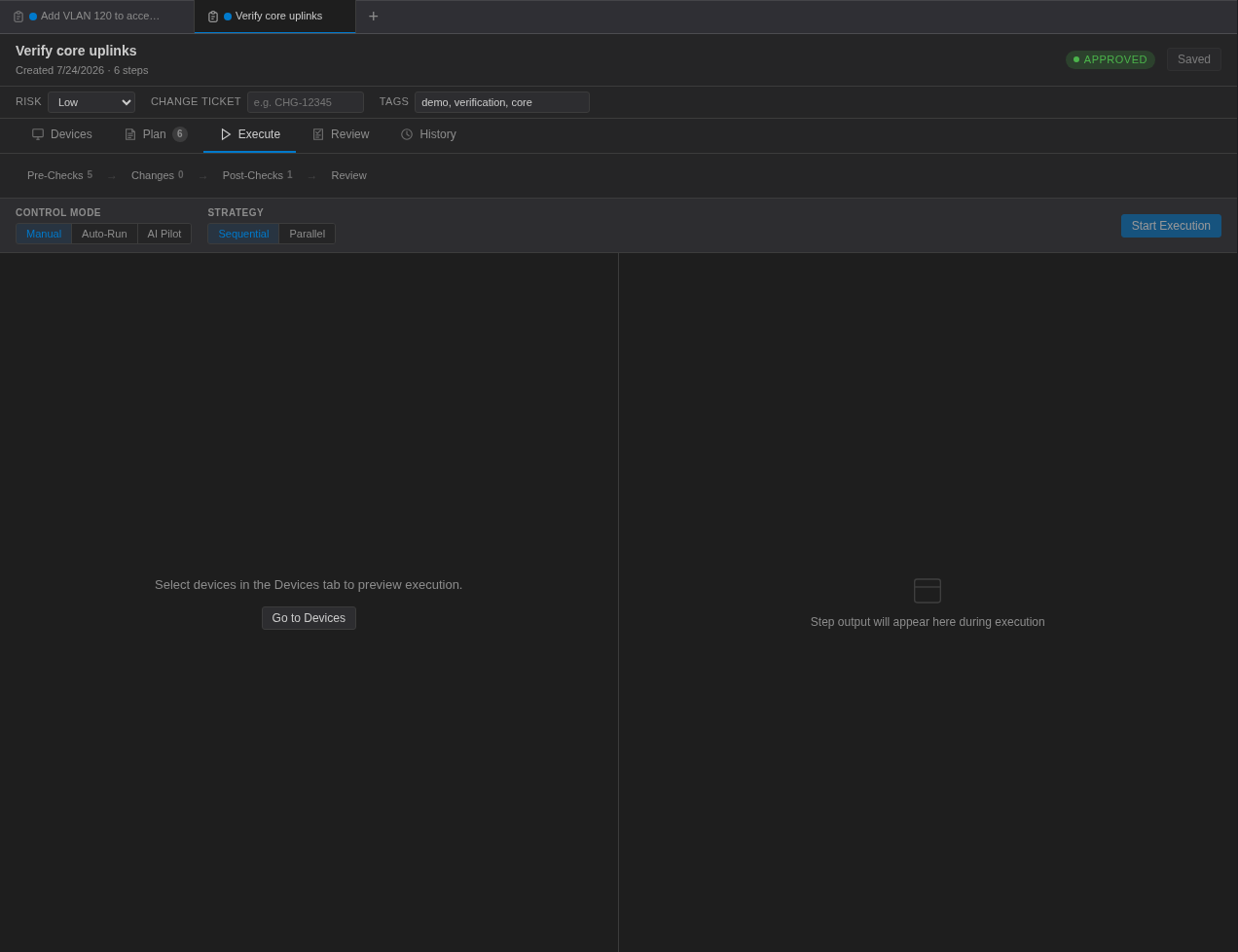
Open the MOP (double-click it, or click Execute on its card in the Changes panel) and select the Execute sub-tab. The tab has three parts:
- A phase strip across the top: Pre-Checks → Changes → Post-Checks → Review, with the number of steps in each phase.
- The run settings bar (Control Mode, Strategy and, for some modes, Trust Level and On Failure) with the Start Execution button.
- A split view: devices and their steps on the left, the selected step's output on the right. Before the run starts, the left side previews which steps will run on which device.
Run Settings
Choose these before you click Start Execution; they are locked once the run starts.
| Setting | Options |
|---|---|
| Control Mode | Manual (you run each step), Auto-Run (you run a whole phase at a time), AI Pilot (the AI comments on, proposes or drives the run, depending on the trust level). |
| Strategy | Sequential — one device at a time per phase. Parallel — all devices at once per phase. |
| On Failure (Auto-Run and AI Pilot) | Pause — pause the execution after a phase with failures. Skip — keep going on the remaining devices. Abort — abort the execution after the first device with failures. |
| Trust Level (AI Pilot) | L1 to L4, see AI Pilot Mode. |

Manual Mode
Manual mode is the most controlled way to run a change: nothing runs until you say so. After you start the execution, a driver bar appears:
- Run next step — runs the next pending step (Enter).
- Skip selected — skips the selected step (S).
- Next — selects the next pending step without running it (N).
- Roll back all devices — see Rollback.
The keyboard shortcuts work while the execution panel has focus.
Auto-Run Mode
In Auto-Run mode you run one whole phase at a time with the buttons Run Pre-Checks, Run Changes and Run Post-Checks. The execution pauses after the pre-checks and again after the changes, so you can look at the results before you continue; running the next phase resumes it.

A phase button stays disabled until the previous phase has finished on every device. If you need to break that order, click Run anyway next to the button.
AI Pilot Mode
AI Pilot adds an AI co-driver to the run. It needs a configured AI provider. Pick how much the AI is allowed to do:
| Level | Behaviour |
|---|---|
| L1 Observer | The AI comments on every step result. Its notes are saved as AI feedback. |
| L2 Advisor | The AI proposes the next step or phase; you approve it. |
| L3 Co-Pilot | You start a phase; when the AI's gate says proceed, the next phase runs automatically. |
| L4 Autopilot | After you click Approve Plan, pre-checks, changes and post-checks run back to back, stopping on any failure or any gate that does not say proceed. |
At every level, if the AI's confidence falls below the threshold the run pauses and hands control back to you (AI confidence below threshold). You can switch the pilot off during a run; the execution keeps running and the AI simply stops driving.
Working With Steps During a Run
Click a step on the left to see its output on the right, along with any failed expected-output checks and the reason a step failed. Steps that call a Quick Action or a Script show the request or script details instead of CLI output.
Each step row has its own actions:
| Action | Use it to… |
|---|---|
| Run this step | run just this step on this device |
| Run this step on all devices | run the step everywhere it applies |
| Retry this step | run a failed step again |
| Skip this step | mark the step skipped |
| Edit command before running | adjust the command for this run only |
| Revert to pending | put a finished step back in the queue |
Rollback
Rollback steps never run as part of the normal phase order. To use them, click Roll back all devices. The button is available while the execution is running and after it has finished (completed, failed or aborted), as long as the plan has rollback steps.
In standalone mode, rollback runs each device's rollback steps one device at a time, wrapped in the platform's configuration mode and save commands (see How Commands Reach the Device).
Pausing, Completing and Aborting
- Pause / Resume — hold the run and continue it later.
- Complete (or Complete with N failures) — marks the execution complete. If steps failed or never ran, the Complete execution dialog tells you how many and asks you to confirm. Results stay as they are.
- Abort — opens Abort execution. Running steps are marked failed and pending steps skipped; you can record a reason. This cannot be undone.
When the run is finished, the bar shows its final status with View Results (opens the Review tab) and New Execution. Starting a new execution resets the view only; the finished execution stays saved.
How Commands Reach the Device
Standalone Terminal
The local NetStacks agent connects to each device over SSH with the session's saved credentials and runs a phase's steps in one shell session. Based on the session's CLI flavor it adds setup and teardown commands around the phase:
| CLI flavor | Changes and Rollback | Pre-Checks and Post-Checks |
|---|---|---|
| Cisco IOS, IOS-XE, NX-OS, Arista EOS | configure terminal … end, write memory | terminal length 0 |
| Cisco IOS-XR | configure … commit, end | terminal length 0 |
| Juniper Junos | configure … commit, exit | set cli screen-length 0 |
| Palo Alto PAN-OS | configure … commit, exit | none |
| Any other flavor (including auto, Linux, FortiOS) | none | none |
So for those platforms, write only the configuration lines in your change steps. If the save or commit at the end fails, the device is marked failed. Expected-output checks are evaluated on every step, and the pre-check and post-check output is captured so the Review tab can compare them.
Connected to a Controller
The Controller runs the steps against its inventory devices over SSH, using the device's credential profile or the override you chose on the Devices tab. Every step it runs is written to the audit log, and the execution is listed on the MOP in the admin console and in the Activity Monitor.
The Review Tab
After the run, open Review (or click View Results). It shows a summary (Devices, Steps, Passed, Failed, Skipped) and each device's steps with their output. Paired pre-checks and post-checks are shown side by side.
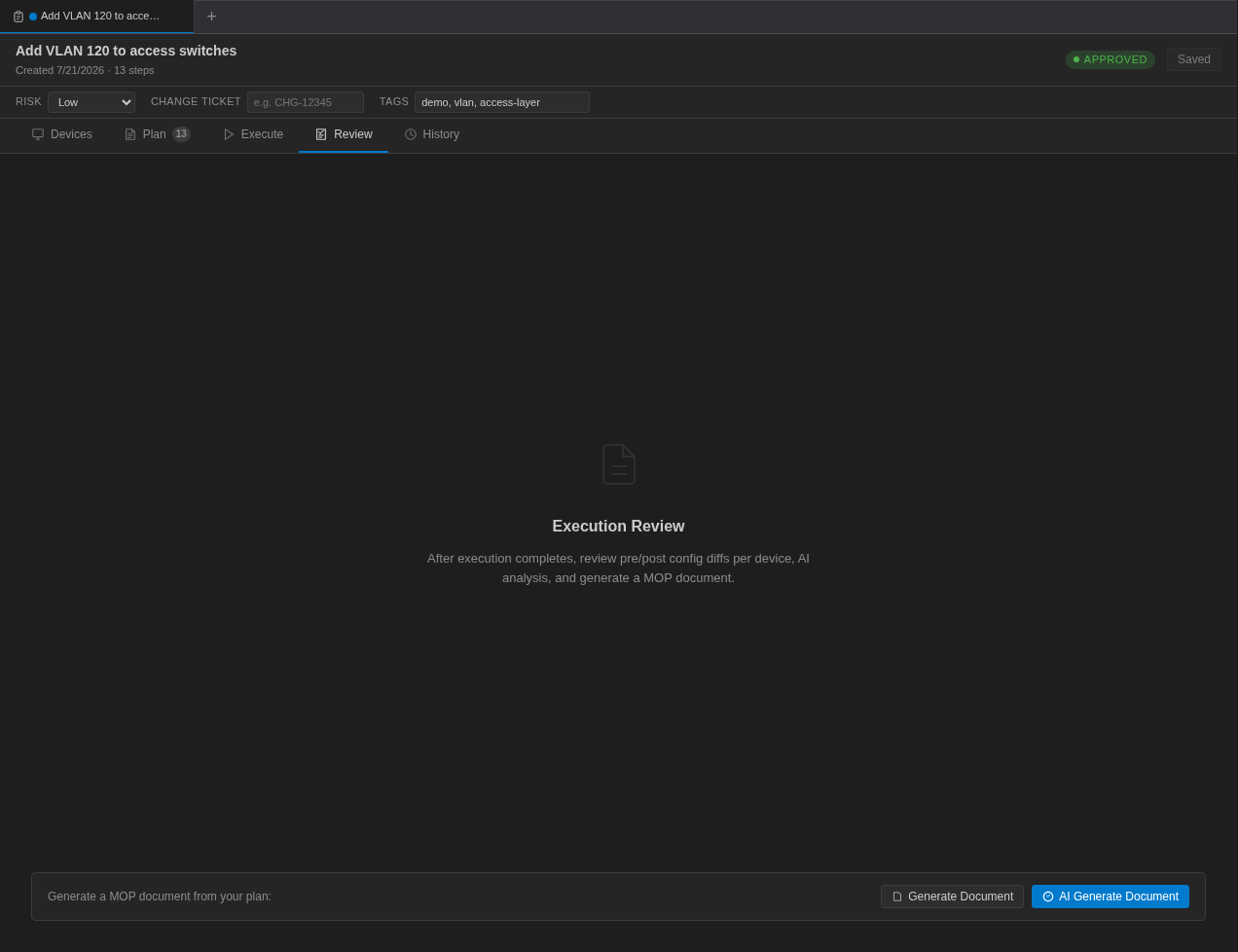
- Config Changes (standalone) — a per-device diff between the output captured in the pre-check phase and in the post-check phase.
- AI Analysis (standalone) — Run AI Analysis asks the AI to analyze the outputs, check results and diffs and returns a risk level and recommendations. Re-run asks again.
- Generate Document — builds a Markdown MOP document from the plan and results and opens it in Documents. No AI is involved.
- AI Generate Document — the same document, improved by the AI with an executive summary and risk notes. The AI is told not to invent commands or outputs; very long outputs are shortened per device before they are sent.
The History Tab Enterprise
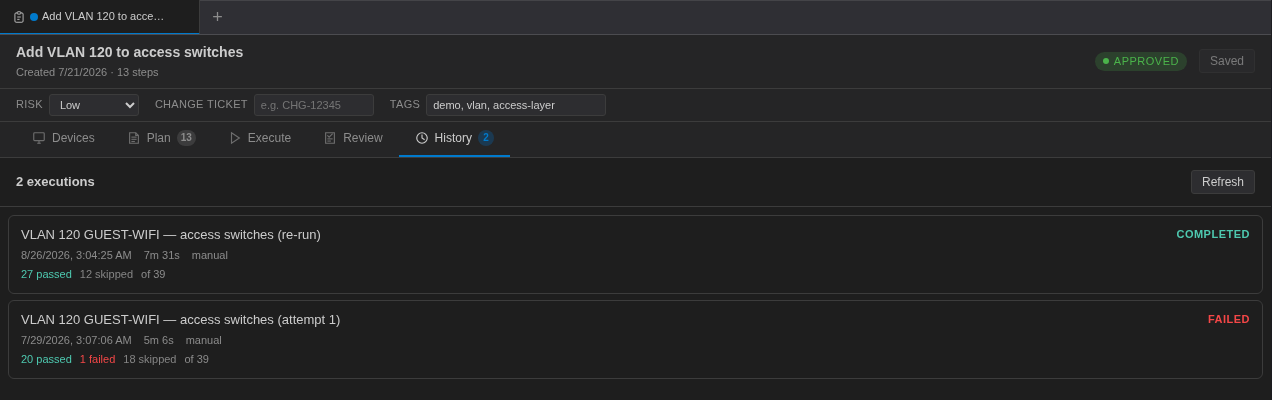
When connected to a Controller, the History tab lists every execution of the MOP with its status, start time, duration, control mode and step counts (passed, failed, skipped, total). Click Refresh to reload.
In standalone mode, past executions are listed in the Executions section at the top of the Execute tab; click Open to reopen one.
Troubleshooting
| Symptom | What to check |
|---|---|
| Start Execution is disabled | Hover over it for the reason: no steps, no devices, or unresolved variables. |
| The Execute tab shows Awaiting Approval | The MOP was submitted for review. A reviewer must approve it in the admin console. |
| A phase button is greyed out | The previous phase has not finished on every device, or no device has pending steps in that phase. Use Run anyway if you mean to skip ahead. |
| A step passes even though the command was rejected | Add a check such as NOT_CONTAINS: % Invalid input to the step's expected output. |
Output stops at a --More-- prompt | Set the session's CLI flavor so the pager is turned off for checks, or add the platform's "no paging" command as the first pre-check. |