
Network Topology Visualization
Build interactive network diagrams on a manual 2D/3D canvas, enrich nodes with live SNMP, DNS, WHOIS and NetBox data, and export as PNG, SVG, or JSON.
Video Walkthrough
A walkthrough from the session library to the map — organising devices into folders, then drawing and enriching the topology those sessions describe, in 2D and 3D.
Overview
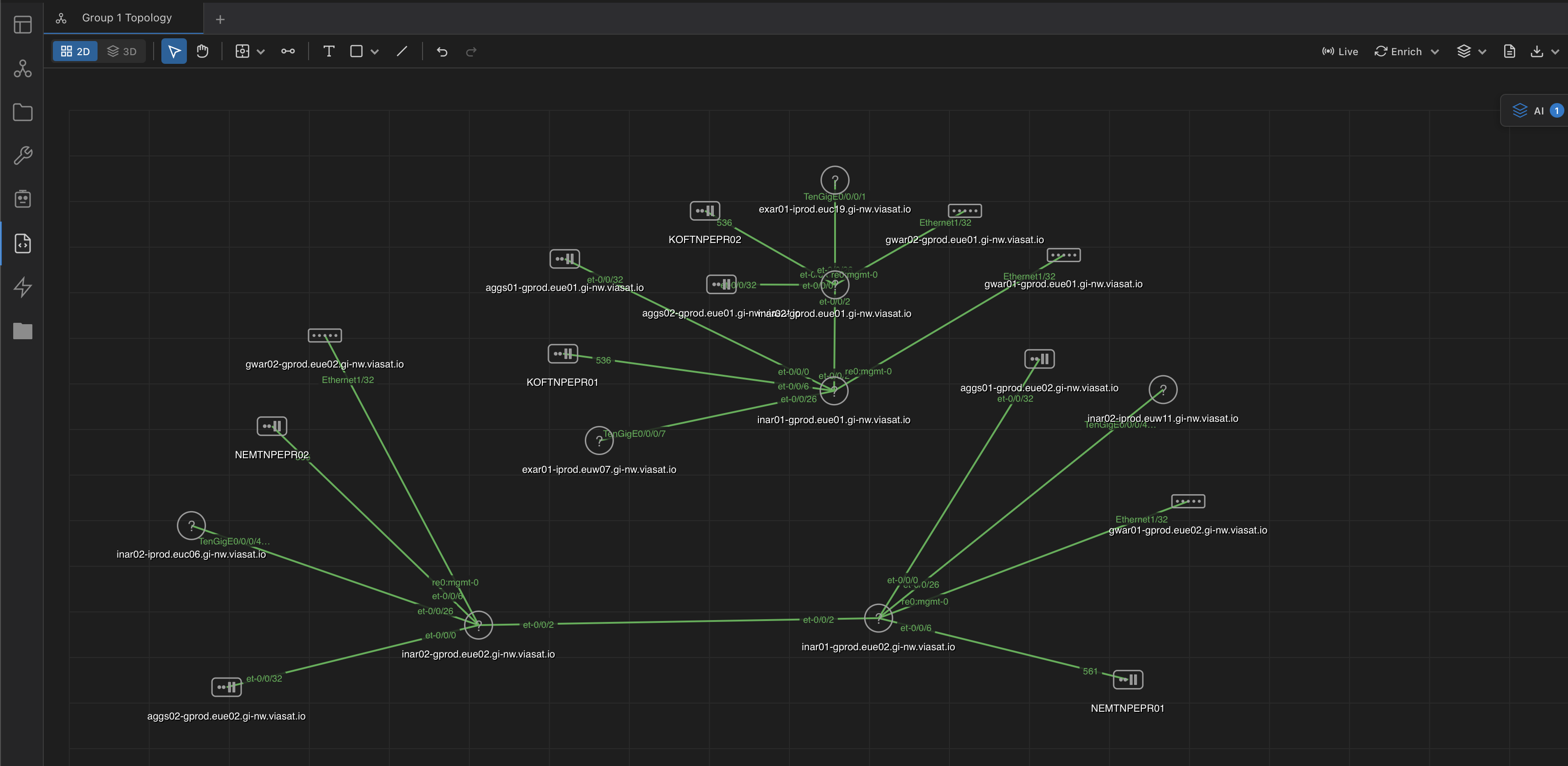
The NetStacks topology view is an interactive diagram editor. You build a network map by hand — placing device nodes, drawing connections between them, and adding shapes and text annotations — then enrich those nodes with real device data pulled from SNMP, DNS, WHOIS/ASN, NetBox, and LibreNMS. The result is a living diagram you can save, organize into folders, share with your team, and export.
The canvas does not run automatic layout algorithms. You position devices and draw links manually (much like a Visio or draw.io canvas), and NetStacks layers live operational data on top. The optional Discover neighbors enrichment can pull in one hop of CDP/LLDP neighbors as new nodes, and a traceroute can seed a path-based diagram, but device placement and connection drawing remain a manual, intentional act.
Viewing Modes
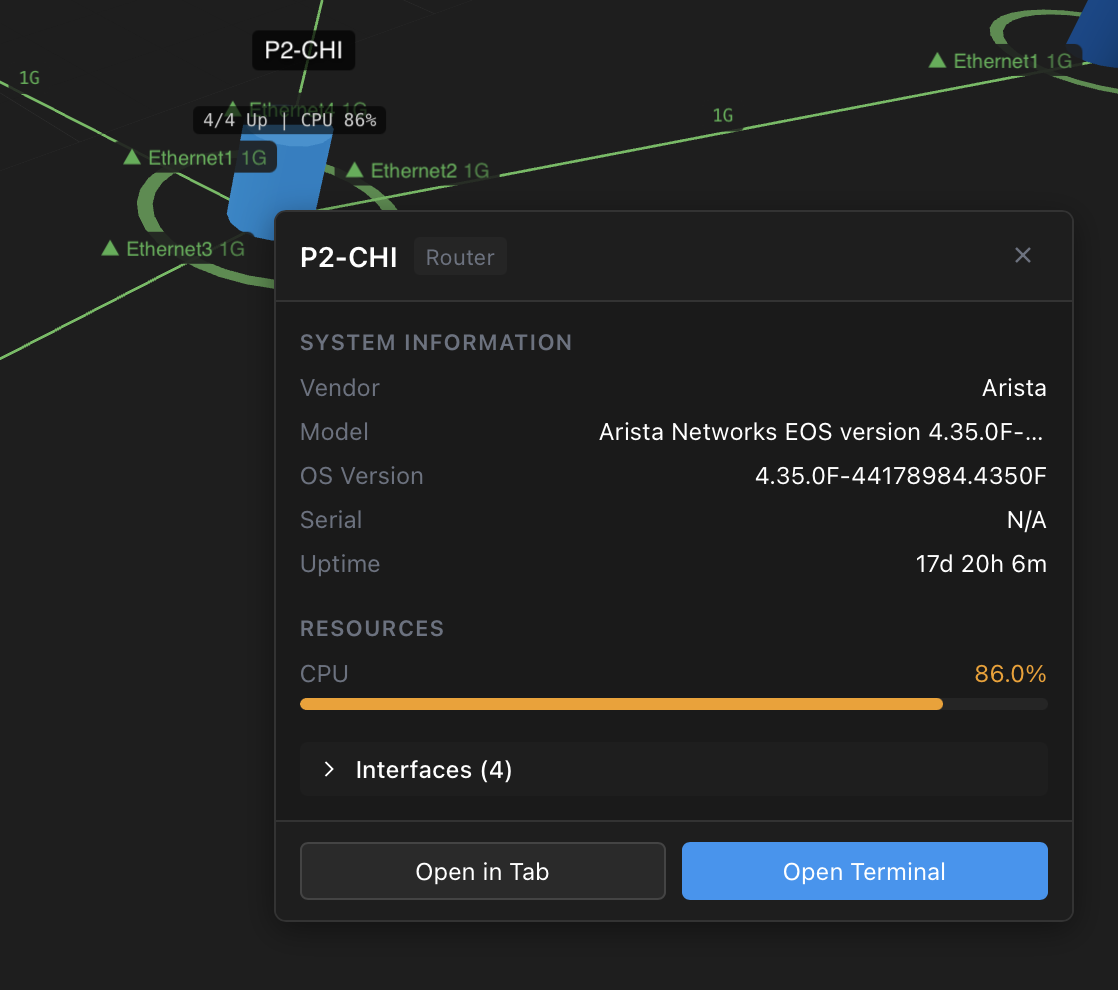
- 2D Canvas — the default editing surface. Place, connect, and annotate devices with full pan, zoom, and drag support.
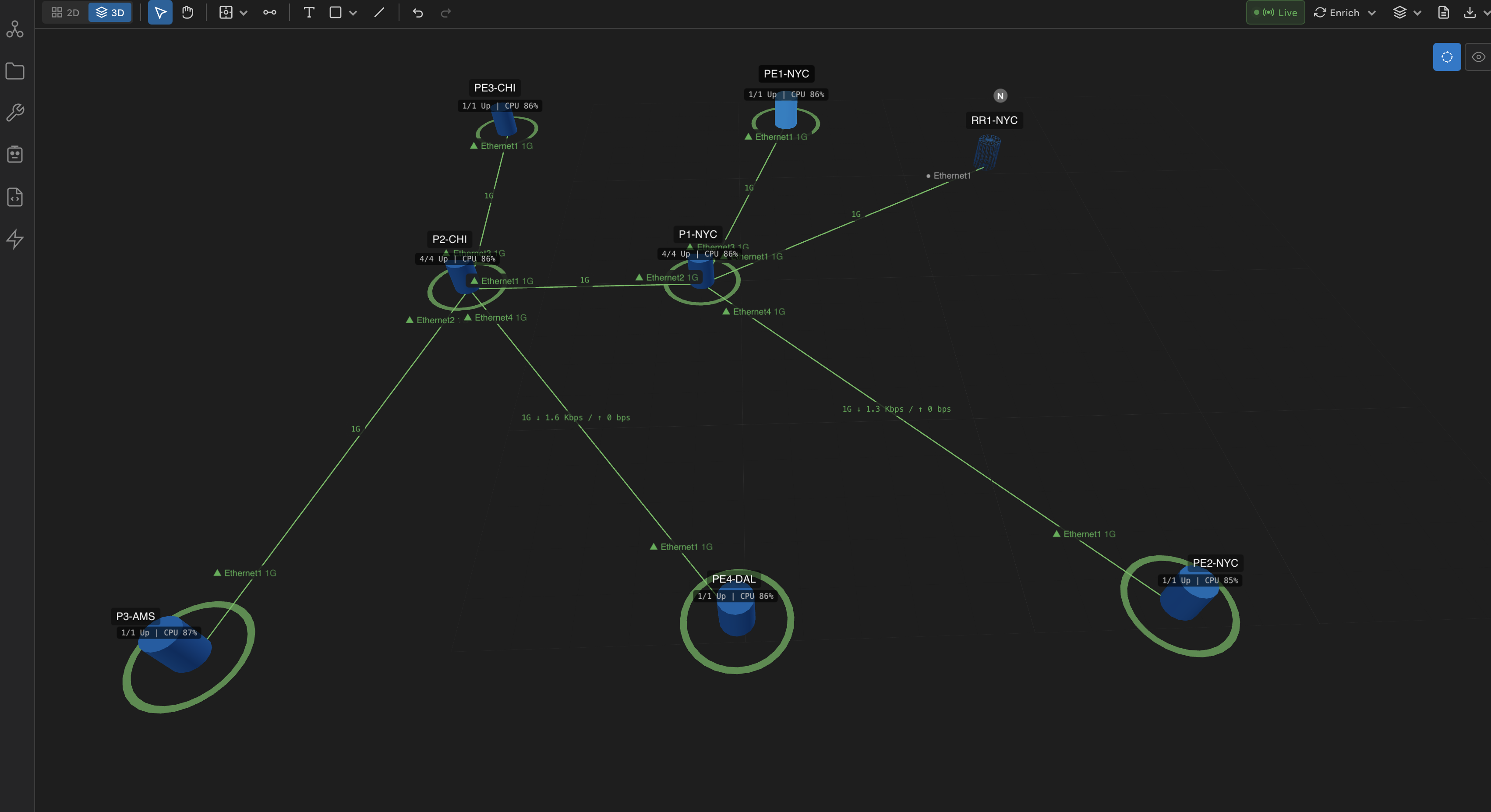
- 3D Canvas — a WebGL view of the same topology for spatial exploration of larger maps. Toggle between 2D and 3D from the view switch on the left of the toolbar.
What You Can Do
- Draw the network — drop router, switch, firewall, server, cloud, load-balancer, access-point and other node types, then connect them.
- Annotate — add free text, shapes (rectangle, circle, diamond, arrow, cloud) and freeform lines to document sites, zones, and notes.
- Go live — turn on live SNMP polling to overlay interface rates and device health on the diagram in real time (Professional and above).
- Enrich — resolve each node against DNS, WHOIS/ASN, NetBox, and LibreNMS to fill in vendor, model, platform, site, and role.
- Export — save the diagram as PNG, SVG, or JSON, or push a snapshot into Docs.
How It Works
Data Model
A topology is a saved document made of three element types, all stored on the controller:
- Devices (nodes)
- Each node has a position (
x,y), adevice_type(which selects the icon), a name and host, plus enrichment fields such asplatform,vendor,model,serial,primary_ip,site,role, andstatus. - Connections (links)
- A link joins a source and target device and can carry a
source_interface/target_interface, a label, and styling (color, line style, width, curve style, and waypoints for orthogonal routing). - Annotations
- Text, shape, and line elements with a
z_indexfor layering. Annotations are visual documentation only and are not part of the live graph.
Device Node Types
The icon on each node is driven by its device_type. The available types are:
router            switch            firewall
server            cloud             access-point
load-balancer     wan-optimizer     voice-gateway
wireless-controller   storage       virtual
sd-wan            iot               unknown
Status Colors
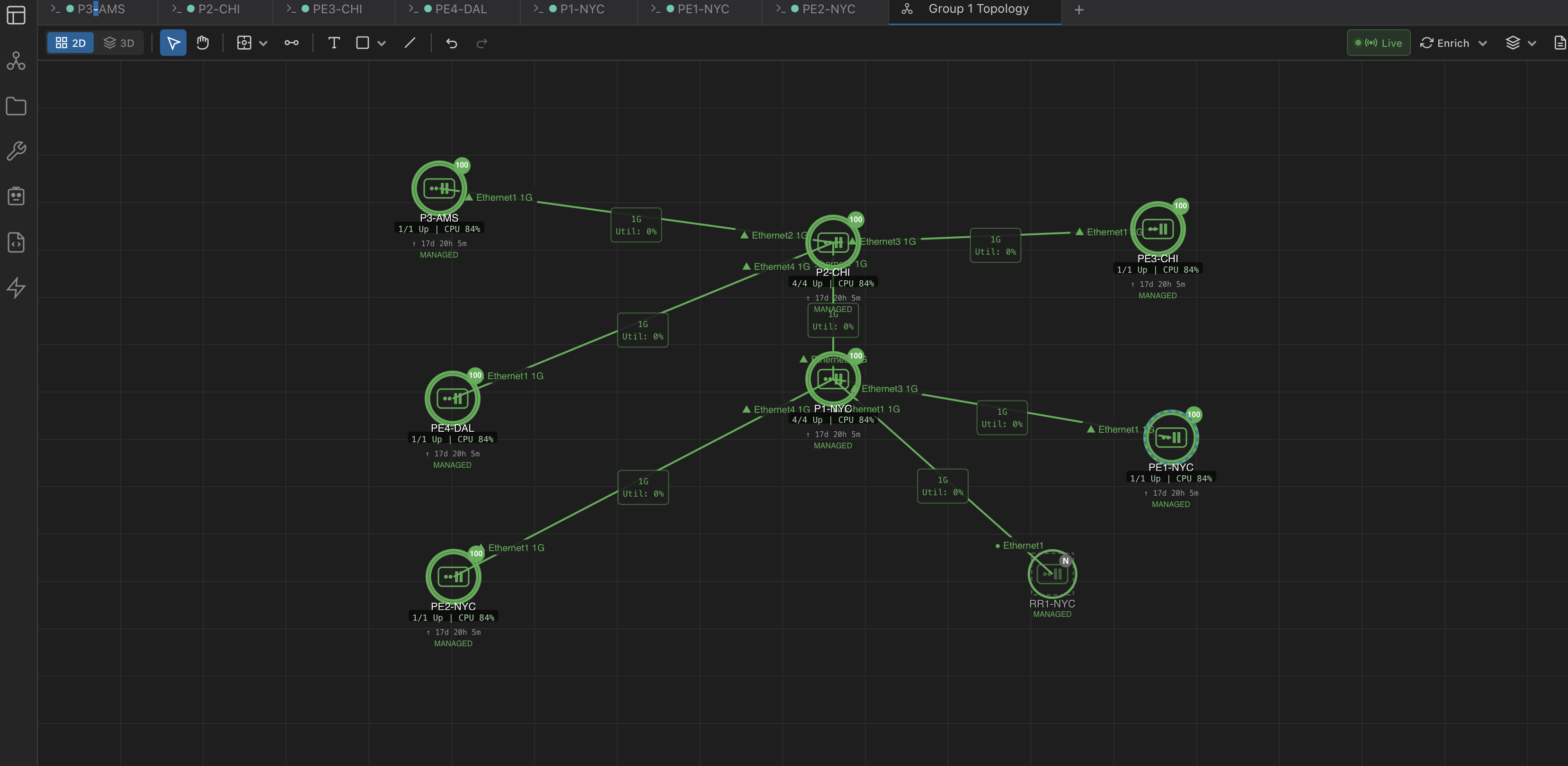
When live SNMP polling is active (or after enrichment sets a status), nodes and their health rings are color-coded:
- Green — device is up / interface operationally up
- Amber — warning (e.g. admin-down interface or degraded health)
- Red — down / unreachable
- Gray — unknown / not currently polled
Topology status is driven by the Live toggle in the toolbar, not by a server-side scheduler. While Live is on, the browser polls SNMP for the diagram’s devices on a fixed 30-second interval and updates the rings and rates in place. Closing the topology or toggling Live off stops the polling. The interval is not user-configurable — there is no separate “status polling interval” setting elsewhere in the app.
The Canvas Toolset
The toolbar runs across the top of the canvas. Tools select with a click or a single-key shortcut.
| Tool | Shortcut | What it does |
|---|---|---|
| Select | V | Pick, move, and edit existing elements. |
| Pan | H | Drag the canvas to reposition the view. |
| Device | D | Drop a node; the dropdown chooses the device type/icon. |
| Connect | C | Draw a link between two devices. |
| Text | T | Place a free text label. |
| Shape | S | Draw a rectangle, circle, diamond, arrow, or cloud. |
| Line | L | Draw a freeform line. |
Undo / Redo
Every edit is undoable with Cmd/Ctrl+Z and redoable with Cmd/Ctrl+Shift+Z.
Layers
The Layers dropdown toggles the visibility of four layers independently: Devices, Connections, Annotations, and Grid. Note that Grid here is the background grid-lines layer — it is a visual guide, not a layout engine.
Export
The Export dropdown offers three formats, all rendered in the browser:
- PNG — raster snapshot of the current canvas.
- SVG — scalable vector version with devices, connections, interface labels, and annotations.
- JSON — the full structured topology (devices, connections, annotations) that can be re-imported to recreate the diagram with fresh IDs.
Export is client-side only and produces png, svg, or json. There is no PDF export and no server-side render endpoint — for a print-ready document, export SVG and convert it, or use Export snapshot to Docs to archive the diagram.
Folders & Sharing
Saved topologies can be organized into nested folders and shared with your team. Sharing a topology also indexes its structure into the knowledge base so AI features can reference it.
Live SNMP & Enrichment
The Live, Enrich, and Discover toolbar actions require local integrations and are available on Professional and Enterprise tiers. Drawing, annotating, and exporting work on all tiers.
Live SNMP Polling
Click the Live button to start polling SNMP for the devices on the diagram. While live, the canvas draws a health ring on each SNMP-capable node and shows per-link interface rates. The toggle is only offered when at least one device on the diagram has an SNMP profile and a host to poll.
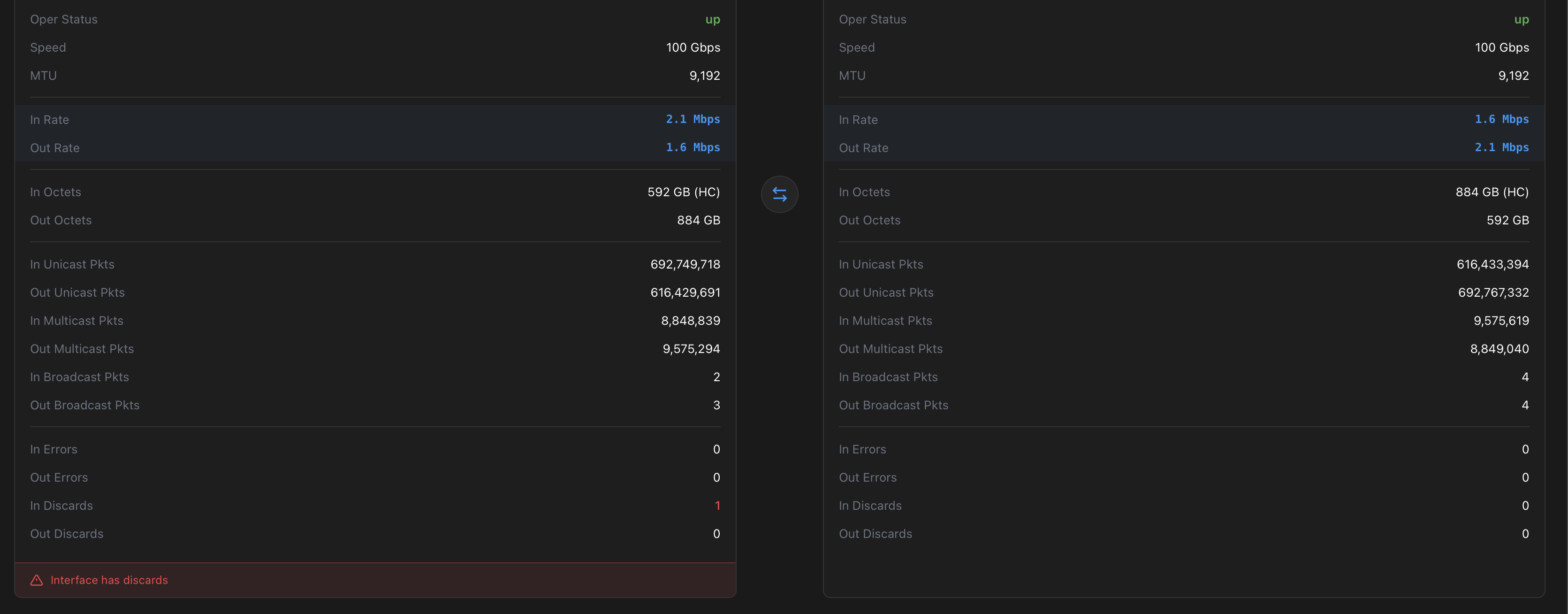
Per-Link Interface Quick Look
For an on-demand reading without enabling full live mode, the SNMP Interface Quick Look samples a single interface twice, five seconds apart, and computes the in/out bit rate plus error and discard deltas between the two samples. It handles 32-bit counter wrap and prefers 64-bit high-capacity counters when the device exposes them.
Topology Enrichment
The Enrich dropdown resolves the IP/host on each node against the sources you select and fills in the node’s details. Available enrichers:
- DNS Reverse — resolve PTR records to hostnames (on by default).
- WHOIS / ASN — classify external/ISP hops with ASN, org, country, and CIDR (on by default).
- Discover neighbors (1 hop) — run SNMP LLDP/CDP discovery on each device that has a profile and add any neighbors found as new nodes and connections. Off by default because it makes a fresh SNMP round-trip per device.
- Show port stats (LibreNMS) — pull per-port utilization, errors, and speed from a selected LibreNMS source and colorize the edges. Enabled only when a LibreNMS source is selected.
- NetBox / NetStacks-Crawler / LibreNMS sources — match nodes against configured integrations to pull vendor, model, platform, site, and role.
- MCP Servers — query enrichment tools exposed by connected MCP servers.
A topology can be seeded from a traceroute path. When the diagram is traceroute-sourced, a Discover button appears that resolves each hop to its managed parent device and one hop of neighbors, turning a flat path into a real network map.
Step-by-Step Guide
Workflow 1: Draw a Topology
- Open the topology editor and create or open a topology.
- Select the Device tool (D), choose a type from the dropdown (e.g. Router), and click on the canvas to place it. Repeat for each device.
- Switch to the Connect tool (C) and drag from one device to another to draw a link. Open the link to add interface names and a label.
- Use Select (V) to drag nodes into position; use Pan (H) and scroll to navigate.
- Click Save to persist the topology to the controller.
Workflow 2: Add Annotations
- Pick the Shape tool (S) and choose a rectangle to draw a boundary box around a group of devices (e.g. a site or DMZ).
- Use the Text tool (T) to drop labels such as “DC1 Core” or “Branch Office”.
- Use the Line tool (L) for freeform callouts.
- Toggle the Annotations layer in the Layers dropdown to hide or show them when sharing.
Workflow 3: Enrich and Go Live
- Make sure each node has a primary IP/host so it can be resolved.
- Open the Enrich dropdown, choose DNS, WHOIS, and any NetBox/LibreNMS sources, then click Run Enrichment.
- Optionally enable Discover neighbors (1 hop) to expand the diagram from SNMP CDP/LLDP data.
- Click Live to overlay real-time SNMP rates and health, or right-click an interface to open the SNMP Quick Look for a one-off reading.
Workflow 4: Export or Archive
- Open the Export dropdown and choose PNG, SVG, or JSON.
- Or click Export snapshot to Docs to store an SVG+JSON snapshot in the Docs system for archival.
- To reuse a diagram elsewhere, export JSON and re-import it — it is recreated with fresh IDs.
API Examples
Topologies are managed through the controller’s /api/topologies routes. There is no /api/v1/topology path and no server-side export endpoint — export happens entirely in the browser.
List and Create Topologies
# List topologies (optionally filter shared / by owner)
GET /api/topologies?shared=true
Authorization: Bearer <token>

# Create an empty topology
POST /api/topologies
Authorization: Bearer <token>
Content-Type: application/json

{ "name": "DC1 Core" }
Fetch a Topology with Devices and Connections
GET /api/topologies/{id}

# Response (TopologyWithDetails)
{
  "id": "8f3c...",
  "name": "DC1 Core",
  "shared": false,
  "owner_id": "u_123",
  "folder_id": null,
  "sort_order": 0,
  "devices": [
    {
      "id": "d_001",
      "topology_id": "8f3c...",
      "x": 400, "y": 100,
      "device_type": "router",
      "name": "core-rtr-01",
      "host": "10.0.0.1",
      "platform": "Cisco IOS-XE",
      "vendor": "Cisco",
      "primary_ip": "10.0.0.1",
      "site": "DC1",
      "role": "core",
      "status": "online"
    }
  ],
  "connections": [
    {
      "id": "c_001",
      "topology_id": "8f3c...",
      "source_device_id": "d_001",
      "target_device_id": "d_002",
      "source_interface": "GigabitEthernet0/0/0",
      "target_interface": "Ethernet1/1",
      "protocol": "ethernet",
      "label": "10G uplink",
      "line_style": "solid"
    }
  ]
}
Add a Device Node
POST /api/topologies/{id}/devices
Content-Type: application/json

{
  "name": "dist-sw-01",
  "host": "10.0.0.2",
  "device_type": "switch",
  "x": 300,
  "y": 250,
  "site": "DC1",
  "role": "distribution"
}

# Move it later
PUT /api/topologies/{id}/devices/{device_id}/position
{ "x": 320, "y": 260 }
Draw a Connection
POST /api/topologies/{id}/connections
Content-Type: application/json

{
  "source_device_id": "d_001",
  "target_device_id": "d_002",
  "source_interface": "GigabitEthernet0/0/0",
  "target_interface": "Ethernet1/1",
  "label": "10G uplink",
  "curve_style": "orthogonal",
  "color": "#2563eb",
  "line_style": "solid",
  "line_width": 2
}
Create an Annotation
Annotations carry an annotation_type (text, shape, or line) and a free-form element_data object describing geometry and style, plus a z_index for layering.
POST /api/topologies/{id}/annotations
Content-Type: application/json

{
  "annotation_type": "shape",
  "z_index": 0,
  "element_data": {
    "shapeType": "rectangle",
    "position": { "x": 200, "y": 50 },
    "size": { "width": 400, "height": 200 },
    "label": "DC1 Core Layer",
    "strokeColor": "#2563eb",
    "strokeWidth": 2,
    "fillColor": "rgba(37,99,235,0.08)"
  }
}
Share and Organize
# Publish to the team (also indexes it into the knowledge base)
PUT /api/topologies/{id}/share
{ "shared": true }

# Move into a folder
PUT /api/topologies/{id}/move
{ "folder_id": "f_42", "sort_order": 0 }

# Bulk delete
POST /api/topologies/bulk-delete
{ "ids": ["8f3c...", "9a1d..."] }
Q&A
- Q: Does NetStacks auto-arrange my devices with a layout engine?
- A: No. The topology is a manual diagram editor — you place and connect devices yourself, similar to a drawing tool. There are no force-directed, hierarchical, radial, or grid layout algorithms. The “Grid” entry in the Layers menu is a background grid-lines guide, not a layout.
- Q: What export formats are supported?
- A: PNG, SVG, and JSON, all rendered in the browser. There is no PDF export and no server-side render endpoint. JSON exports can be re-imported to recreate the diagram with new IDs, and you can also push an SVG+JSON snapshot into Docs.
- Q: How does the topology show live device status?
- A: Through the Live toggle in the toolbar, which polls SNMP for the diagram’s devices on the client side while the topology is open. The browser polls on a fixed 30-second interval; it is not a server-side scheduler and there is no user-configurable status-poll setting. Nodes show green/amber/red/gray rings based on the latest sample.
- Q: Can I add neighbor devices automatically?
- A: Yes, via enrichment. Enable Discover neighbors (1 hop) in the Enrich dropdown to run SNMP LLDP/CDP discovery on each device that has a profile and add discovered neighbors as new nodes and connections. It is one hop and off by default because it makes a fresh SNMP query per device.
- Q: How do I see interface traffic on a link?
- A: Right-click an interface to open the SNMP Interface Quick Look. It takes two SNMP samples five seconds apart and computes in/out bit rates plus error and discard deltas, handling 32-bit counter wrap. Turn on Live to overlay these continuously.
- Q: Which features need a paid tier?
- A: Drawing, annotating, saving, and exporting work on all tiers. Live SNMP polling, enrichment (DNS/WHOIS/NetBox/LibreNMS/MCP), and traceroute discovery require local integrations and are available on Professional and Enterprise.
- Q: What API path manages topologies?
- A: The controller exposes
/api/topologieswith nested routes for devices (/api/topologies/{id}/devices), connections, annotations, folders, sharing, and bulk delete. There is no/api/v1/topologyendpoint.
Troubleshooting
Nodes Have No Vendor / Model / Hostname
- Enrichment only resolves nodes that have a primary IP or host. Set one on each device, then run Enrich.
- NetBox/LibreNMS fields appear only when those integrations are configured and selected in the Enrich dropdown.
- Enrichment and Live are Professional+ features — if the buttons are hidden, the active tier does not include local integrations.
Live Button Is Missing or Disabled
- The Live toggle only appears when at least one device on the diagram has an SNMP profile and a host to poll.
- Confirm the device’s SNMP profile/community is correct and that the controller can reach the device on UDP/161.
Discover Neighbors Finds Nothing
- Neighbor discovery uses SNMP LLDP/CDP tables — ensure LLDP or CDP is enabled on the connecting interfaces.
- Each device must have an SNMP profile assigned for the 1-hop discovery to query it.
3D View Is Blank
- The 3D canvas needs WebGL. Use a current browser with hardware acceleration enabled.
- Some VMs and remote-desktop sessions lack WebGL — use the 2D view there.
I Want a PDF
- There is no native PDF export. Export SVG and convert it with your preferred tool, or capture a PNG for quick sharing.
Related Features
- Adding Devices — the device inventory that backs topology nodes
- Network Discovery — SNMP/CLI/nmap discovery and traceroute hop resolution that can seed and enrich a diagram
- NetBox Integration — a source for node enrichment (vendor, model, site, role)
- SNMP Communities — the SNMP profiles that power live polling and Quick Look
- Knowledge Base — shared topologies are indexed here for AI features