Scripts
Write and run Python automation scripts in the NetStacks Terminal's Python Engine, pass parameters and device context, and manage the shared script library on the Controller.
Overview
NetStacks scripts are Python programs for jobs a single CLI command cannot do: collecting data from many devices, parsing output, calling APIs, or producing a report. Scripts are run with uv (uv run --script), so each script brings its own dependencies and you do not need to manage a Python environment.
- In the standalone Terminal, you write and run scripts in the Python Engine. The local NetStacks agent runs them on your computer and downloads uv the first time it is needed.
- On a Controller, the admin console keeps a script library for the organization under Config Automation → Device Scripts.
The Python Engine (Terminal)
Click Workspaces in the activity bar. The PYTHON ENGINE section at the top lists your scripts under My Scripts and reusable starting points under Templates, with the buttons New Script, AI Generate and Refresh.
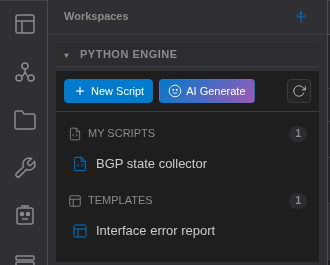
Click a script to open it in an editor tab. Right-click it for Edit Script and Delete Script.
Write a Script
- Click New Script.
- Type a name in the Script name... field at the top of the tab.
- Write your Python code in the editor and press Ctrl+S(Cmd+S on macOS) or click Save. The tab shows Saved, Saving... or Unsaved.
While a script tab is active, the AI side panel switches to Script Overlord with actions such as Explain Script and Improve Script, and code it suggests can be applied straight into the editor. See AI Chat.
Run a Script
- Click Input (Run Configuration) to open the run panel.
- Under Select devices, pick the sessions the script should run for. The script runs once per selected device. With no devices it runs once on its own.
- Fill in the Parameters form, or use Custom Input (JSON) to pass free-form input (for example
{"command": "show version"}). - Under Execution, choose Parallel or Sequential for multi-device runs.
- Click Run (Ctrl+Enter / Cmd+Enter). Output streams into the Output panel below the editor. Stop ends the run and kills the Python process.
The Output panel has buttons to export or clear the results.
Parameters with main()
If your script defines a main() function with typed parameters, NetStacks reads the parameter names and types and shows them as a form in the run panel. When you run the script with parameter values, NetStacks calls main() with them and prints whatever main() returns (dictionaries and lists are printed as JSON), so you do not need an if __name__ == "__main__" block.
import os, json

def main(threshold: int = 0, include_down: bool = False):
    device = json.loads(os.environ["NETSTACKS_DEVICE"])
    return {
        "device": os.environ.get("NETSTACKS_DEVICE_NAME"),
        "host": os.environ.get("NETSTACKS_DEVICE_HOST"),
        "threshold": threshold,
        "include_down": include_down,
    }
Click Raw JSON above the form to type the arguments as JSON instead, and Form to switch back.
Device Context and Environment Variables
For each device, the script receives the device details as environment variables. The script does not inherit the NetStacks agent's own environment.
| Variable | Contents |
|---|---|
NETSTACKS_DEVICE | The device as JSON |
NETSTACKS_DEVICE_HOST | Host name or IP address |
NETSTACKS_DEVICE_NAME | Device or session name |
NETSTACKS_DEVICE_TYPE | Device type |
NETSTACKS_INPUT | The Custom Input JSON, if given |
NETSTACKS_ARGS | The parameter values as JSON, if given |
Python Dependencies
uv reads the inline script metadata block defined by PEP 723. In the standalone Terminal you do not have to write it: before each run NetStacks looks at your import lines and generates the block for you (Python 3.11 or newer, plus the packages you import). The first run of a script with new packages takes longer while uv downloads them.
import requests        # added to the dependencies automatically
from netmiko import ConnectHandler
AI-Generated Scripts
AI Generate asks the AI to write a script from a description. A script written by the AI opens with a warning (This script was generated by the AI.) and must be reviewed and approved before it can run, because it will run with your device credentials. Read the code, then click the approve button in the script toolbar.
The Script Library on the Controller Enterprise
In the admin console, Config Automation → Device Scripts(/automation/scripts) lists the organization's scripts with Name, Origin, Template, Shared, Owner and Last Run. Search with Search scripts....
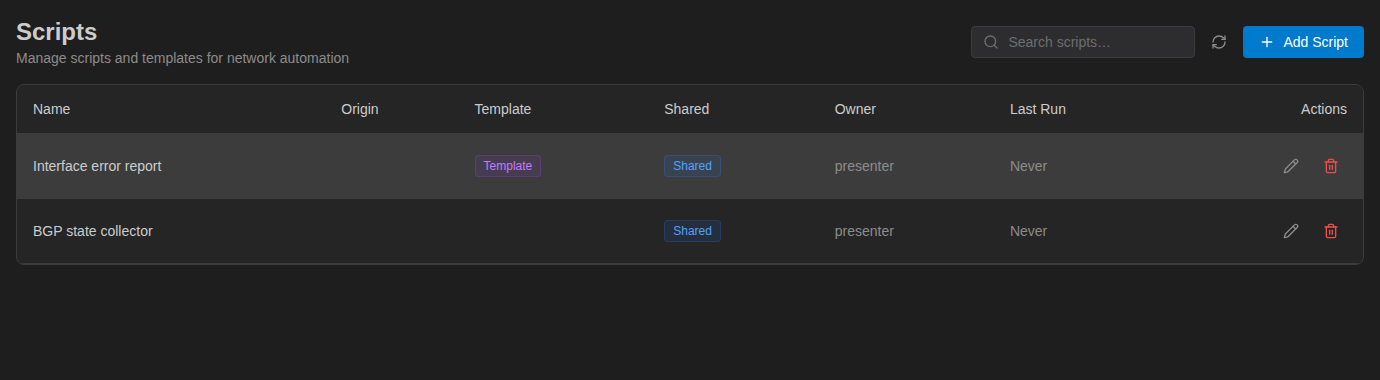
- Add Script opens Create Script: a Name, the Python Content in a code editor, a Template switch and a Shared checkbox. Click Save.
- Only the owner can edit a script. A shared script owned by someone else opens read-only.
- The Origin column marks AI-written scripts as AI · needs review or AI · approved. Use the approve action (Approve this AI-authored script for execution) after reviewing one.
Scripts on the Controller run inside your personal jumpbox container on the Controller and are stopped after 120 seconds. If a Controller script has no PEP 723 block, a default set of common network automation packages is added for it (including netmiko, napalm, textfsm, ntc-templates, ttp, jinja2 and requests); if you write your own block, it is used as is.
Using Scripts Elsewhere
- MOP steps — in the standalone Terminal a MOP step can use a script as its Source, with parameter values per step. See Step Fields.
- Scheduled tasks — a Custom Script task runs CLI commands, not Python. Its Load from saved script option copies a saved script's text into the commands box. See Custom Script.