AI Highlights
Let the AI watch terminal output live and highlight errors, security issues and anomalies, then click a highlight to discuss it with the assistant.
Overview
AI Highlights scans what appears in your terminals and marks lines that look like problems — a BGP neighbour that isn't Established, an err-disabled interface, CRC errors, an exposed secret, CPU above 90%. It works alongside your own highlight rules (Settings → Highlighting), which are pattern-based; AI Highlights asks the model to judge the output.
It is available in standalone and enterprise mode (desktop and web terminal). The button only appears when AI tools are enabled.
Turning AI Highlights On
- Click AI Highlights in the status bar. The tooltip reads "Enable AI Highlights — scan terminal output live for errors, security issues and anomalies".
- The button turns active ("AI Highlights on — terminal output is scanned live… (click to disable)"). Click it again to stop.

AI Highlights always starts off when NetStacks launches and applies to all open terminals while it is on. If the button is missing, check that AI Button is enabled in the status bar settings.
What It Flags
Every scan checks the new output for three kinds of issue:
| Type | Examples |
|---|---|
| Errors | error / fail / denied / timeout messages; BGP not Established; OSPF not Full; interfaces down or err-disabled; non-zero CRC, input or output errors |
| Security | exposed credentials or plaintext secrets, suspicious connections, authentication failures, certificate warnings |
| Anomalies | CPU above 90%, memory above 95%, disk above 90%, unusual ports, zombie processes, odd protocol states, speed/duplex mismatches |
Output is collected for about 1.5 seconds after it stops changing and then analysed. Terminal output passes through sanitization before it reaches the provider.
Working with Highlights
- Flagged text is coloured in the terminal.
- Hover a highlight to see the type, the reason and a confidence percentage, followed by "Click to discuss with AI".
- Click it to open the AI panel with a prompt about the flagged line, so you can ask the assistant to investigate further.
Choosing the Provider and Model
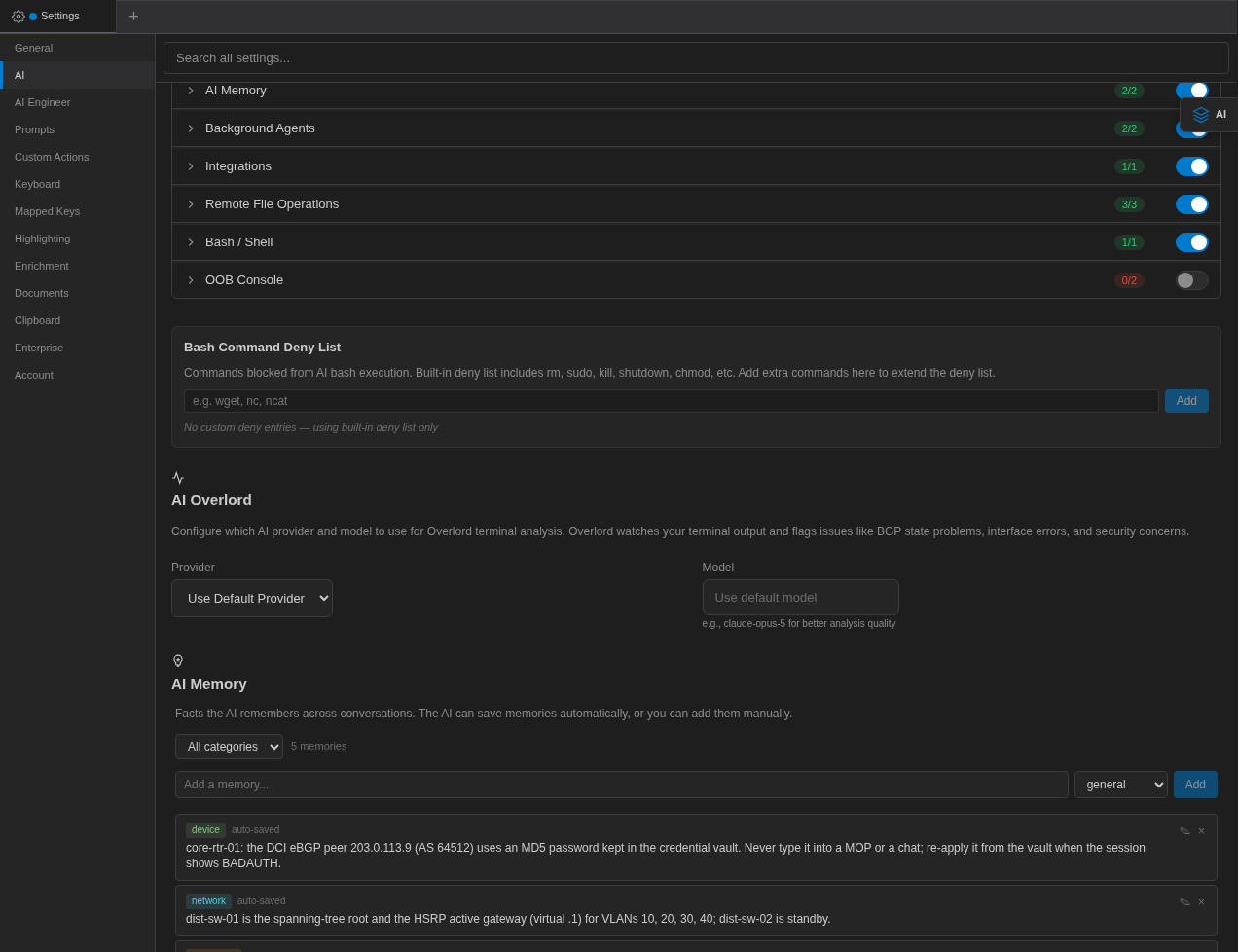
By default AI Highlights uses your default provider and model. To use a different one (for example a fast, inexpensive model), open Settings → AI → AI Overlord — the settings section for highlights — and choose a Provider and optional Model.
In enterprise mode the Controller performs the analysis with its configured providers.
Usage and Cost
Each burst of terminal output triggers AI requests while highlights are on, so busy sessions (log tails, long show outputs) generate many requests. Turn AI Highlights on when you are actively troubleshooting and off afterwards. On a Controller, highlight analysis counts toward the token budget.