Troubleshooting Sessions
Record the commands and output from one or more terminals while you troubleshoot, then let the AI write the incident report for you.
Overview
A Troubleshooting Session is a recorder, not an AI mode. While it runs, NetStacks captures the commands you type and the output they produce in the terminals you pick (and, if you choose, your AI assistant conversation). When you end the session, the timeline is sent to the AI, which writes a structured Markdown report that is saved to your Documents.
Troubleshooting sessions work in both the standalone NetStacks Terminal and when it is connected to a NetStacks Controller (including the web terminal). The AI summary uses whichever AI provider is configured for your mode — see AI Providers & Models.
Start a Session
- Connect to the device(s) you are going to work on. Only connected terminals can be captured.
- Click Troubleshoot in the status bar, press Cmd+Shift+K (macOS) / Ctrl+Shift+K (Windows/Linux), or run Start Troubleshooting Session from the command palette.
- In the Start Troubleshooting Session dialog, enter a Session Name (for example "Router BGP Issue"). The field shows a TAB ✨ badge — press Tab on the empty field to have the AI suggest a name from your current context.
- Under Terminals to Capture, tick the terminals to record, or use Select All. If nothing is connected you will see "No connected terminals. Connect to a device first."
- Leave Include AI conversations in recording ticked if you want your AI panel conversation to become part of the timeline.
- Check the Session Settings summary (auto-timeout and auto-save), then click Start Recording.
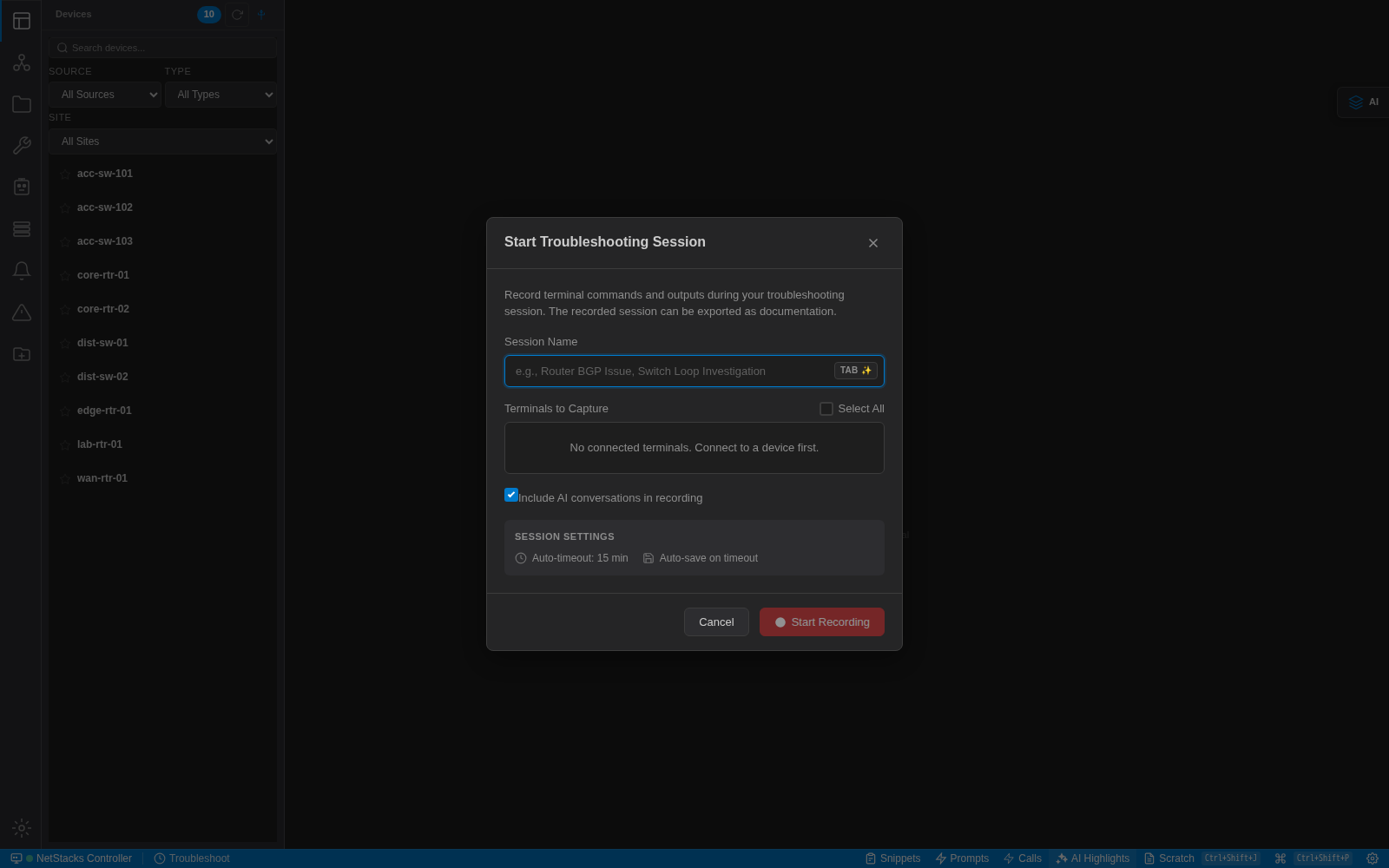
The Start Troubleshooting Session dialog. The Session Settings box shows the inactivity timeout that will apply to this recording.
While Recording
A recording indicator appears in the status bar (tooltip: "Troubleshooting session in progress - Click for options"). Work normally — run your show commands, ask the AI assistant questions, and so on.
Click the indicator to open the Recording Session popover. It shows the session duration and how many commands, AI messages and terminals have been captured so far, plus two actions:
- Attach Topology — attach the current topology to the recording (the button changes to "Topology attached").
- End & Generate Report — stop recording and produce the report.
End & Generate the Report
Click End & Generate Report. NetStacks sends the captured timeline to the AI and saves the result as a Markdown document in the troubleshooting documents category. Long command outputs are trimmed before they are sent, and the request passes through the same credential sanitization as every other AI request (see Privacy & Data Sanitization).
- If nothing was captured, you will see "Session ended with no captured entries" and no document is created.
- If the AI request fails (for example no provider is configured), NetStacks still saves a basic, non-AI summary of the timeline; the notification reads "Summary saved (basic): …".
What the Report Contains
The AI is asked to produce a report with these sections:
- Summary
- Findings
- Actions Taken — a table of Time, Device, Command and Purpose
- Resolution
- Recommendations
The report may also include a full command log. Because it is a normal document, you can open it, edit it, or run AI Enhance on it from the Documents panel.
Timeout & Settings
A session ends automatically after a period of terminal inactivity. In the standalone Terminal you can change this under Settings → Troubleshooting:
- Inactivity Timeout — how long without activity before the session ends.
- Auto-save on Timeout — generate and save the report when the timeout ends the session.
- Capture AI Conversations — the default for the "Include AI conversations" checkbox.
When connected to a Controller, the defaults shown in the dialog's Session Settings box apply (for example "Auto-timeout: 15 min" and "Auto-save on timeout").
Tips
- Start the session before you begin investigating so the report captures the initial symptoms.
- Ask the AI assistant to explain what you are seeing as you go; with AI conversations included, its reasoning ends up in the report too.
- Device commands you run are your own — the recorder never runs anything on a device.