AI Assistant Problems
Fix an AI assistant that is not configured, cannot reach its provider, is rate limited, will not run commands, or is managed by a Controller. Covers Anthropic, OpenAI, OpenRouter, Ollama, LiteLLM and custom endpoints.
Overview
- Standalone: the local agent calls your AI provider directly from your computer, using the API key stored in your vault. You configure providers in Settings → AI.
- Enterprise (desktop or web terminal): AI requests go to the Controller, which calls the providers your administrator set up. You cannot add providers in the Terminal.
Background AI features (command autocomplete, next step suggestions, AI Highlights) stay silent when AI is not configured. If they never show anything, check the setup below first.
Checklist (Standalone)
Open Settings → AI and expand your provider under PROVIDERS:
- Turn the provider on. Each row has an Enable <Name> switch. Only Anthropic is on by default.
- Enter the API key and click Save Key. Ollama needs no key.
- Add a model under Models. A provider with no model is treated as not configured. NetStacks does not pick a model for you; the placeholders are only suggestions. Use the refresh button ("Refresh model list from provider") to load the models your key can use.
- Make it the default with Set as Default. Most AI features use the default provider.
- Click Test. A working setup reports Connection successful and the row badge changes to Connected. Error means the request failed.
The AI panel's provider menu lists only configured providers. If it shows No AI, none are configured yet.
Error Messages
| Message | Fix |
|---|---|
AI not configured. Add your API key in Settings > AI to enable AI features. | The selected provider has no API key. Add and save it. |
Vault is locked. Unlock the vault to access AI API keys. | API keys live in the vault. Unlock it in Settings → Security. |
Rate limited by AI provider | The provider returned HTTP 429. Wait and retry, or check your plan's limits with the provider. Turning off background features (below) reduces the number of requests. |
| An authentication or 401/403 error from the provider | The key is wrong, revoked, or has no access to the chosen model. Re-enter it or pick another model. |
| A model-not-found error | The model ID in Models does not exist for this provider. Refresh the model list and choose one from it. |
| Requests time out on long answers | Requests to Anthropic and OpenAI time out after 60 seconds. Lower Max Tokens on the provider, or ask for shorter output. |
Under AI AUTOMATION you can turn off Command Autocomplete and Next Step Suggestions. The AI Highlights button in the status bar sends terminal output for analysis while it is on; click it again to turn it off.
Ollama and Other Local Models
- The Ollama row shows Ollama not detected. Run: ollama serve when it cannot reach Ollama. Start Ollama, and check the Base URL (default
http://localhost:11434). - Pull a model first (
ollama pull llama3.2), then add the same name under Models. - LiteLLM defaults to
http://localhost:4000. - For any other OpenAI-compatible server, Google Gemini / Vertex AI, or Anthropic on Vertex AI, use Custom and set the Base URL, API Format and Model Name. For gateways that use OAuth2, choose OAuth2 Client Credentials under Authentication; the API Key field is then used as the client secret.
Proxies, Gateways and TLS
- Every provider has a Base URL field, so you can point it at an internal gateway or proxy.
- If the gateway uses a certificate from an internal CA, either install that CA in your OS trust store or clear Verify TLS Certificates for that provider. Only clear it for endpoints you control.
The AI Will Not Run a Command
This is usually on purpose. By default the AI may only run read-only commands in your terminal (commands that start with show, display, get, list, ping, traceroute or trace). Anything else is refused, with a message such as Command rejected by read-only filter: ... Enable AI Config Mode to allow configuration changes.
- Standalone: to let the AI send configuration commands, turn on AI Configuration Mode in Settings → AI. It asks for your master password and turns itself off after 5 minutes.
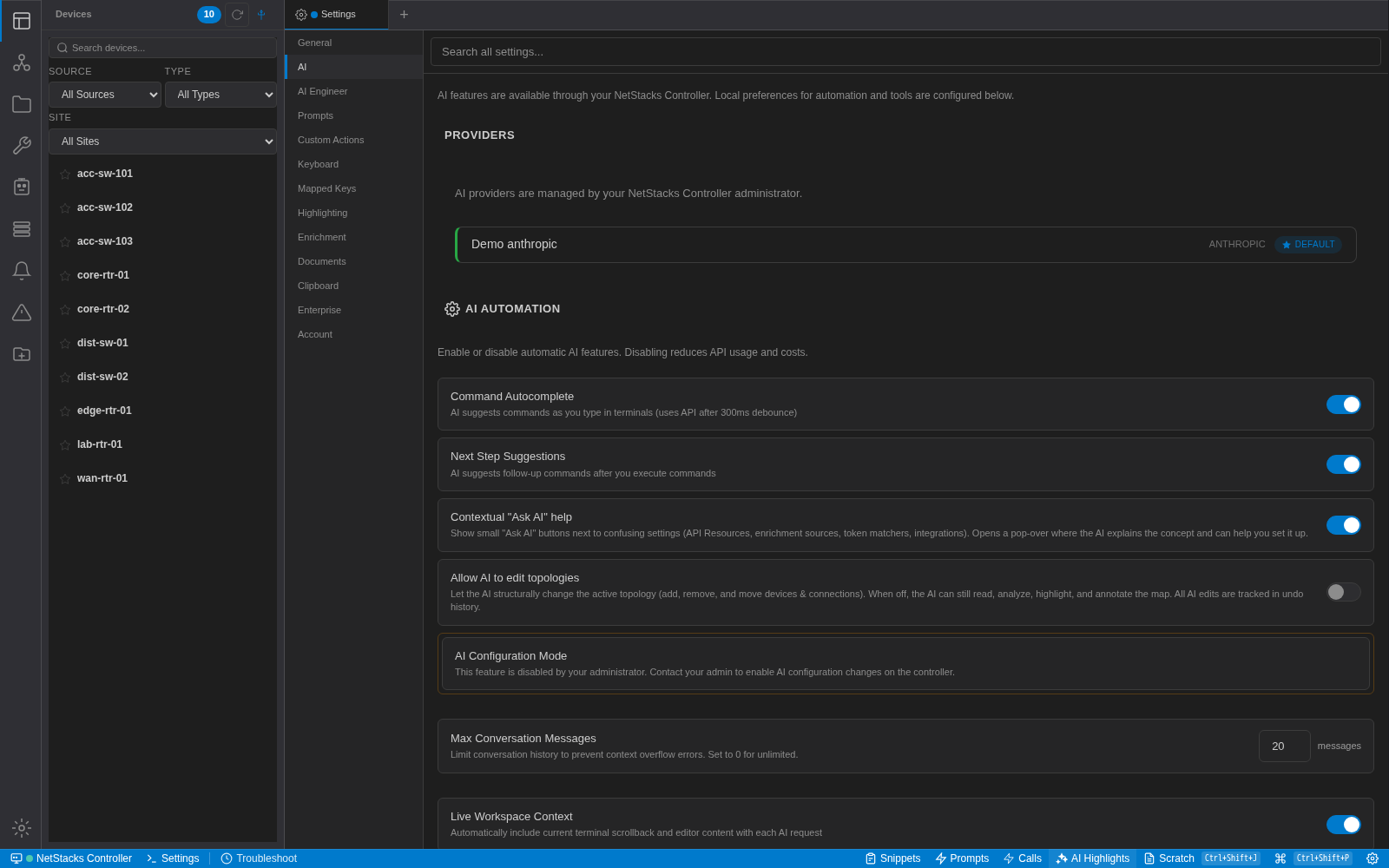
- Enterprise: if the setting says This feature is disabled by your administrator. Contact your admin to enable AI configuration changes on the controller., an admin must turn on Allow AI Configuration Changes in the Controller's Settings → AI.
Also check the permission mode at the bottom of the AI panel (Ask, Auto, Go Nuts). In Ask mode commands and file changes appear in an Approval Required box and wait for you; if you reject them, none of that turn's actions run.
Answers Contain [IP-REDACTED] or Similar
Before anything is sent to the AI provider, NetStacks removes secrets such as enable secrets, SNMP communities, TACACS/RADIUS keys and private keys. These rules are always on. Optional rules can also hide IP addresses, MAC addresses, hostnames and usernames.
If the assistant cannot answer because addresses were hidden, open Settings → AI → AI Data Security and turn off the optional rule, or add the value to the Allowlist. Use Test Sanitization to see what a piece of text looks like after redaction. In enterprise mode these settings are managed on the Controller.
AI Through a Controller Enterprise
In enterprise mode Settings → AI shows AI providers are managed by your NetStacks Controller administrator. and lists the Controller's providers. The rest of the tab (automation toggles, tools) still applies to your Terminal.
| Message | Fix |
|---|---|
No providers configured on the Controller. Contact your administrator. | An admin adds a provider under Administration → LLM Providers (also reachable from Settings → AI → Manage LLM Providers), and checks that it is Enabled and its Health is Available. |
AI is not configured. Configure LLM providers in the Admin UI. |
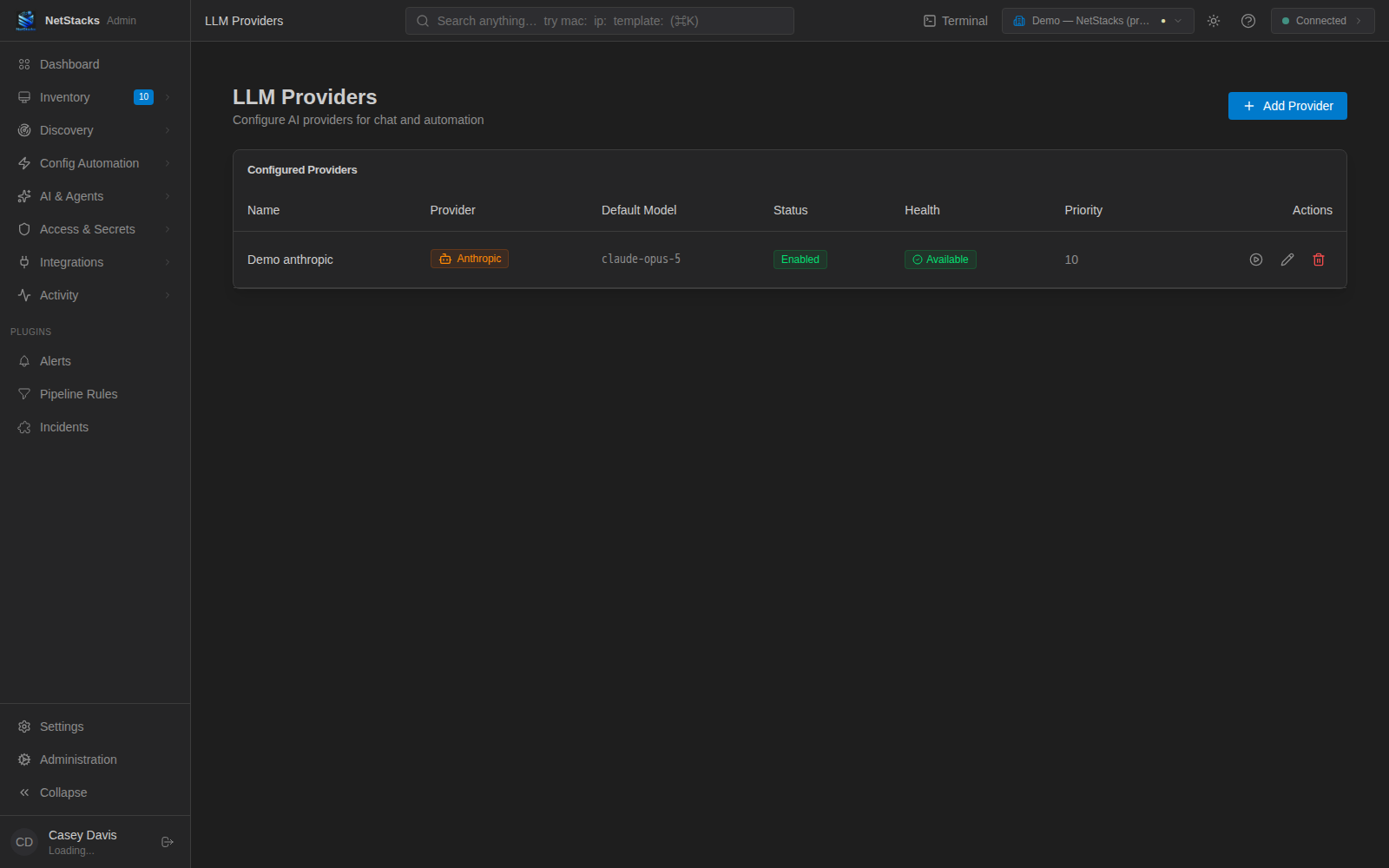
- The Controller chooses which provider and model answer, based on your assigned AI Engineer profile and the provider priority. Ask your admin if you need a different model.