Controller Certificate Errors
EnterpriseFix the Terminal's Cannot Connect screen, untrusted or changed Controller certificates, and certificates that do not cover the Controller's address. Includes manual CA install commands for macOS, Windows and Linux.
Overview
The Controller only speaks HTTPS. Out of the box it creates its own certificate authority, NetStacks Controller CA, and uses it to sign the server certificate on port 3000. Your operating system does not trust that CA until you install it, so the first connection from the desktop Terminal or a browser needs one trust step.
Controller URLs always use https://. If you type http://, the Terminal changes it to https://. The standard deployment listens on port 3000, for example https://controller.example.com:3000.
On the first launch after you enter a Controller URL, the desktop app checks the certificate. If it is not trusted, an Untrusted Controller Certificate dialog shows the CA fingerprint and asks whether to trust it. Click OK to install the CA into your OS trust store. NetStacks then restarts so it picks up the new trust. What you see during the install depends on the OS:
- macOS: the CA goes into your login keychain. macOS may ask for your login password.
- Windows: the CA goes into your user's Trusted Root store. Windows shows its own "install this root certificate?" confirmation. It can open behind the NetStacks window. Click Yes.
- Linux: NetStacks uses
pkexecto copy the CA to/usr/local/share/ca-certificates/and runupdate-ca-certificates, so you get a graphical password prompt. This needs polkit.
The Cannot Connect Screen
If the Terminal cannot talk to the Controller, it shows a Cannot Connect screen with the Controller URL instead of the sign-in form. The message tells you which problem it is.
Untrusted certificate
Message: Cannot connect — the Controller has an untrusted TLS certificate.
- Click Trust Certificate…. NetStacks fetches the Controller's CA and shows its SHA-256 fingerprint.
- Get the real fingerprint from your Controller administrator (see the next section) and paste it into the box.
- Click Verify & Install. If the values differ you see Pasted fingerprint does NOT match. Do not install. Stop and check with your administrator. Someone may be intercepting the connection.
Install (visual check only) skips the paste step. Use it only if you compared the fingerprint by eye with a trusted source.
If installing fails, a Certificate Install Failed dialog shows the OS error. On Linux, Failed to run pkexec ... polkit is required for the GUI sudo prompt. means no polkit agent is available. Install the CA by hand instead (see below).
Controller unreachable
Message: Cannot connect to Controller. Check your Controller URL in Settings.
This is a network or URL problem, not a certificate problem. Check:
- The URL, including the port (usually
:3000). - That the Controller answers from your machine:
curl -k https://controller.example.com:3000/health # {"status":"ok","version":"..."} - Firewalls, VPN and proxies between you and the Controller host.
Click Retry once it is fixed. To change the URL when you cannot get past this screen, edit or delete app-config.json as described in Switching back to standalone by hand.
Getting the Real Fingerprint
Always compare the fingerprint with one you got through a channel you trust. Ways to get it:
- From the Controller host (admin): the CA details are published at a public endpoint. Run this on the Controller itself so the answer cannot be intercepted, and read the
fingerprintfield:curl -sk https://localhost:3000/api/tls/ca-certificate/info - From a Terminal that is already connected: open Settings → Enterprise and read CA Fingerprint (SHA-256) under TLS Certificate.
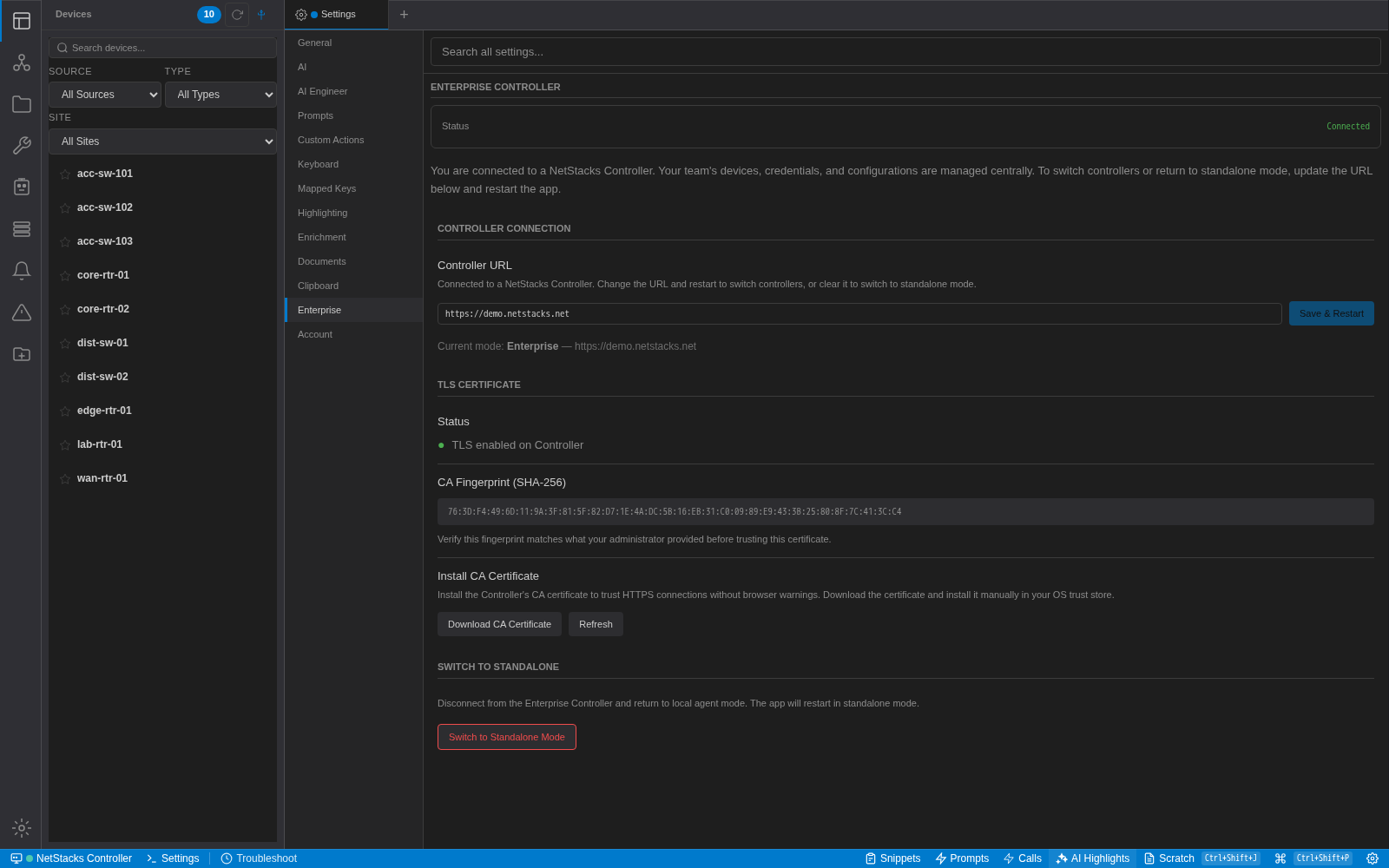
The same tab has Download CA Certificate (saves netstacks-ca.pem) and, in the desktop app, Install to Trust Store.
Certificate Does Not Cover the Address
Dialog: Controller Certificate — Address Not Covered. It lists the address you are connecting to and the names and IPs the certificate covers. Trusting the CA cannot fix this: the OS rejects any certificate whose Subject Alternative Names (SANs) do not include the address in the URL.
Fix it on the Controller (admin):
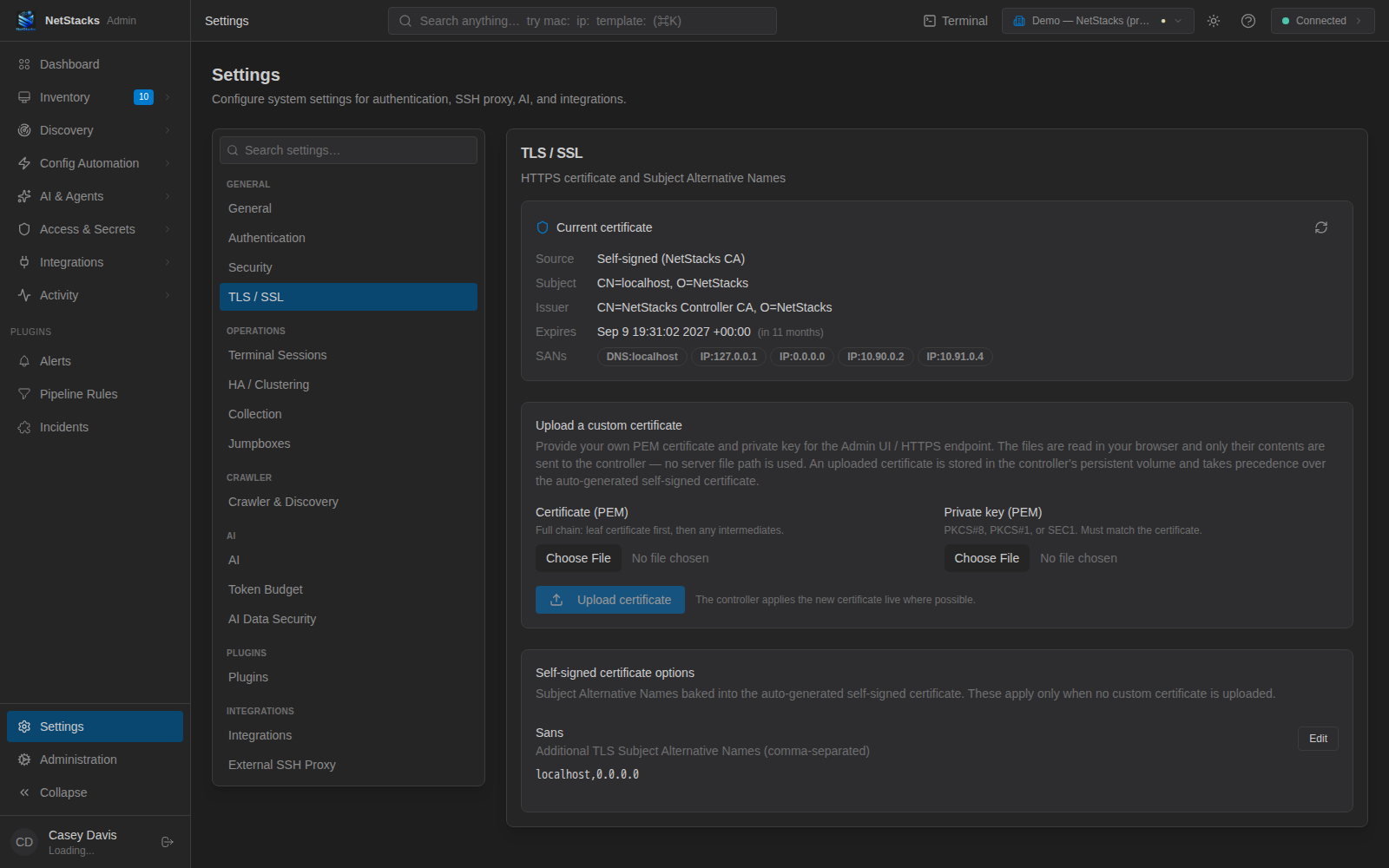
- In the admin console, open Settings → TLS / SSL. The Current certificate panel lists the SANs in use.
- Under Self-signed certificate options, click Edit next to Sans and add every hostname and IP address users type in their Controller URL, comma-separated. Save.
- Restart the API so it issues a new server certificate, then restart the front-end container so it serves it:
docker compose restart api
docker compose restart admin-ui
The CA does not change when you do this, so Terminals that already trust it keep working.
Certificate Changed
Dialog: Certificate Changed, with the previous and current fingerprints. The desktop app remembers the Controller CA it trusted. This dialog means the Controller now presents a different CA.
Upgrading the Controller keeps the CA, because it lives in the netstacks_data volume. A new CA usually means the Controller was reinstalled or that volume was recreated. It can also mean someone is intercepting the connection.
- Ask your Controller administrator whether the CA was replaced, and get the new fingerprint.
- If the change is expected, quit NetStacks and remove that Controller's entry from
controller-cert.jsonin the NetStacks app data folder (or delete the file):- macOS:
~/Library/Application Support/com.netstacks.terminal/ - Linux:
~/.local/share/com.netstacks.terminal/ - Windows:
%APPDATA%\com.netstacks.terminal\
- macOS:
- Start NetStacks and trust the new CA after comparing fingerprints.
Installing the CA by Hand
Download the CA (Download CA Certificate in Settings → Enterprise, or from the public endpoint), check its fingerprint, and install it with the same commands NetStacks uses:
# Download (compare the fingerprint before installing)
curl -k -o netstacks-ca.pem https://controller.example.com:3000/api/tls/ca-certificate
openssl x509 -in netstacks-ca.pem -noout -fingerprint -sha256security add-trusted-cert -r trustRoot \
-k ~/Library/Keychains/login.keychain-db netstacks-ca.pemImport-Certificate -FilePath .\netstacks-ca.pem -CertStoreLocation Cert:\CurrentUser\Rootsudo cp netstacks-ca.pem /usr/local/share/ca-certificates/netstacks-controller-ca.crt
sudo update-ca-certificatesRestart NetStacks afterwards. The app reads the trust store only when it starts.
Browser Warnings (Admin Console and Web Terminal)
Browsers show a certificate warning for the admin console and the web terminal at /terminal/ until the CA is trusted. Installing the CA into the OS trust store as above fixes this for browsers that use the OS store. Firefox keeps its own store unless it is set to trust OS certificates; import netstacks-ca.pem there under its certificate settings.
Users should open the Controller with an address listed in the certificate's SANs. Using a different name or IP gives a name-mismatch warning even with the CA trusted.