Controller Deployment & Health
EnterpriseCheck the health of a NetStacks Controller, read its container logs, and fix common install, startup, upgrade, jumpbox and license-activation problems.
Overview
The Controller runs as a Docker Compose project. Run the commands on this page from the deployment directory (the one with docker-compose.yml and .env). For a high-availability install, add -f docker-compose.ha.yml to each docker compose command.
| Service | What it does |
|---|---|
api | The Controller API. Runs migrations at start, opens device SSH sessions, runs jobs. |
admin-ui | nginx serving the admin console and the web terminal at /terminal/, and proxying to the API. It publishes host port 3000, the only port exposed. |
db | Bundled PostgreSQL 16 with pgvector (not used when you point at an external database). |
valkey | Session registry, session sharing and HA coordination. |
crawler-backend, crawler-worker | Network discovery. |
The API also starts containers of its own through the Docker socket: one jumpbox container per web-terminal user, and one container per installed plugin.
Checking Health
Start with these checks whenever users report that the Controller is slow, down or behaving oddly.
From the command line
docker compose ps                              # every service should be "running" / "healthy"
curl -k https://localhost:3000/health          # {"status":"ok","version":"..."}
curl -k https://localhost:3000/ready           # status plus database and valkey checks
/health and /ready need no sign-in, so you can also use them from a load balancer or monitoring system.
From the admin console
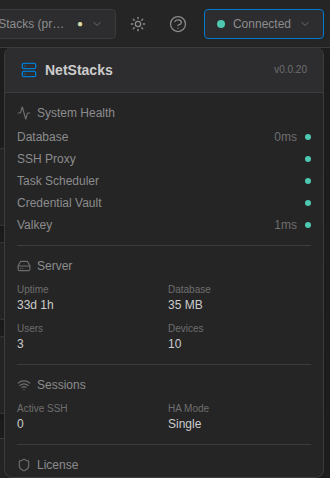
The status pill in the top-right corner of the admin console shows Connected or Disconnected and checks the Controller every 15 seconds. Click it for System Health, server, session and license details.
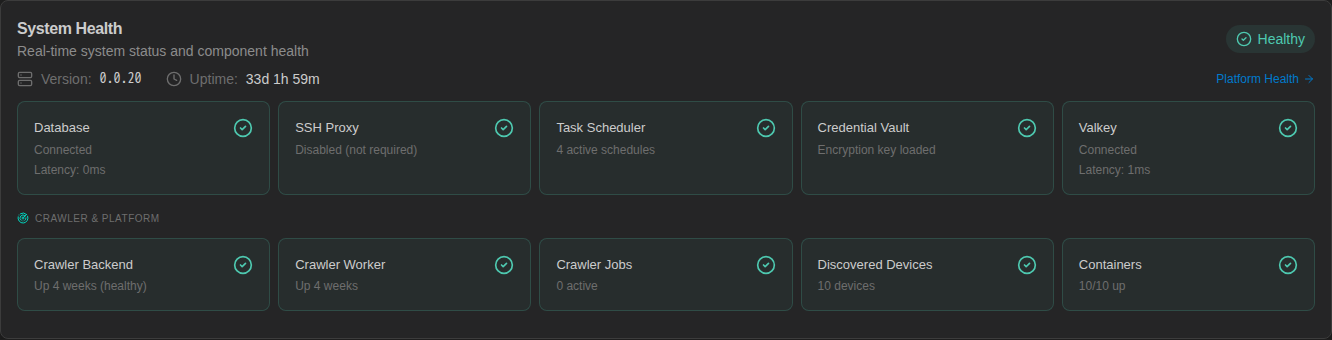
The Dashboard has a System Health panel with the same components and the crawler and container status.
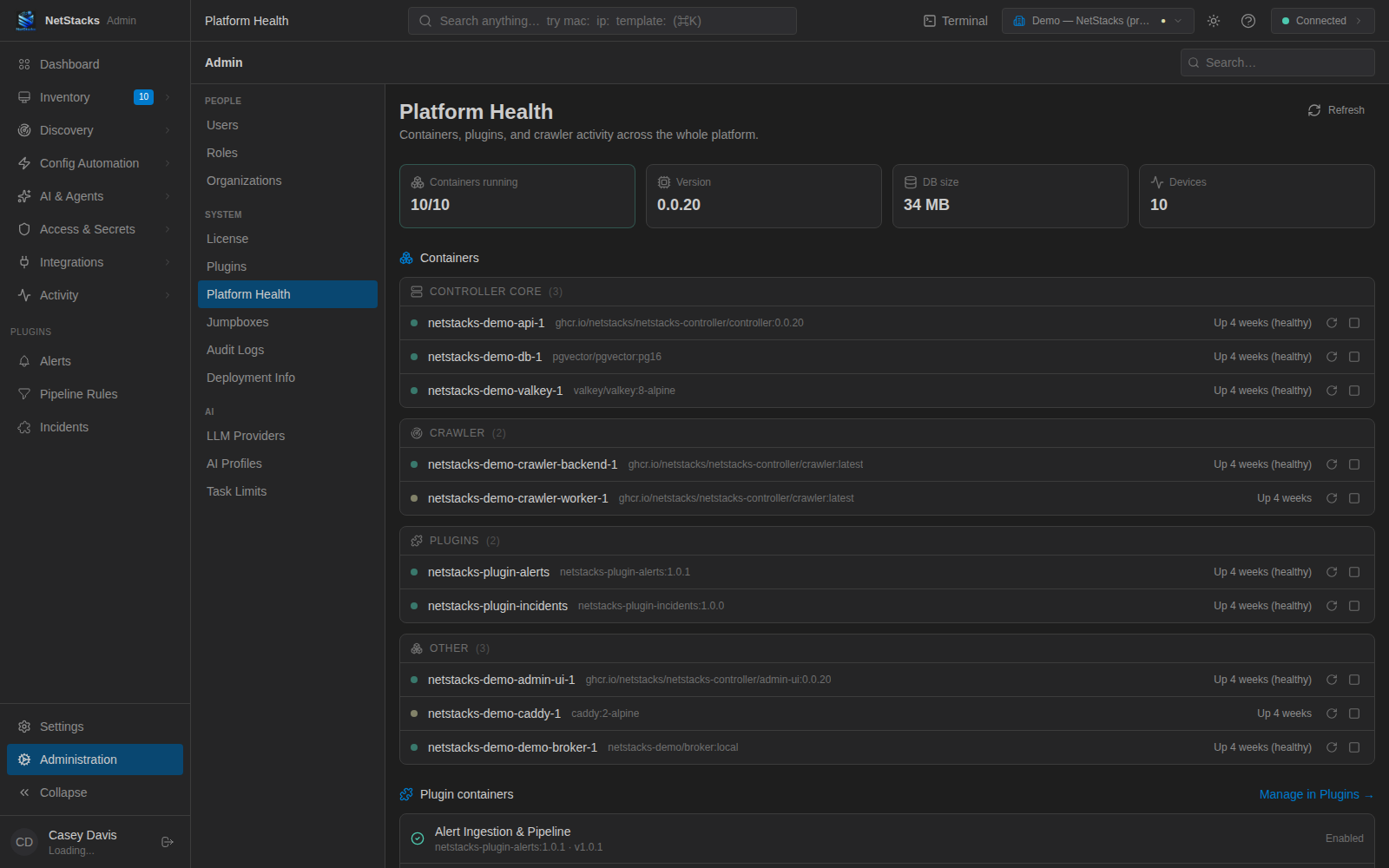
For container-level detail, open Administration → Platform Health. It lists every container of the deployment (Controller core, crawler, plugins) with its status, and has restart, stop and start buttons for each one. You need the system.manage permission to use the buttons.
Reading Logs
docker compose logs -f api admin-ui     # follow the API and web front end
docker compose logs --since 30m api      # last 30 minutes of the API
docker compose logs db                   # bundled PostgreSQL
docker compose logs valkey
docker compose logs crawler-backend crawler-worker
The API log level comes from RUST_LOG in .env (the installer sets info). For more detail, set RUST_LOG=debug and run docker compose up -d api. Set it back afterwards; debug logs are large.
In the admin console, Activity → Audit Log records sign-ins, session takeovers, backups and other admin actions, which helps when tracking down who changed what.
Installer Errors
install.sh says | Fix |
|---|---|
ERROR: Docker is not installed. | Install Docker Engine. |
ERROR: Docker daemon is not running or current user lacks permissions. | Start Docker (sudo systemctl start docker) or add your user to the docker group and log in again. |
ERROR: Docker Compose (v2) is not available. | Install the Compose plugin so docker compose version works. |
| Image pull fails (unauthorized / denied) | The images are in a private registry. Log in with the GitHub token you were given (it needs read:packages): docker login ghcr.io. The installer asks for it, or reads GHCR_USER and GHCR_TOKEN. |
| Image pull fails with "no matching manifest" | The images are built for x86-64 (amd64) hosts only. Use an amd64 server. |
Database did not become healthy. Check: docker compose logs db | Read the database log. For an external database, check host, port, credentials and that pgvector is installed. |
Valkey did not become ready. Check: docker compose logs valkey | Read the Valkey log; usually a disk or permissions problem on the volume. |
API did not become healthy. Check: docker compose logs api | See the next section. |
If you run install.sh again and create a new configuration while using the bundled database, it runs docker compose down -v, which deletes the existing database volume. To change settings on a working install, edit .env and run docker compose up -d instead. Take a backup first either way.
The API Container Will Not Start
Run docker compose logs api and look at the last lines. Common causes:
- Missing secrets. Compose refuses to start with messages such as
Set VAULT_MASTER_KEY in .env (openssl rand -hex 32).VAULT_MASTER_KEY,JWT_SECRETandSERVICE_TOKEN_SECRETmust all be set in.env. - Wrong vault key.
VAULT_MASTER_KEYis 64 hex characters and must never change once credentials are stored. If it was changed or lost, stored secrets cannot be decrypted. Restore the original.env. - Database connection. For an external PostgreSQL, check
DATABASE_URL, that the server is reachable from the Docker host, and that the pgvector extension is available. The database user also needs CREATEROLE (or superuser) to set up the discovery schema; without it the Controller starts but discovery is disabled.
Upgrades and Rollback
Upgrades pull new images and restart; database migrations run when the API starts. upgrade.sh also takes a database dump first:
./upgrade.sh             # newest release
./upgrade.sh 0.0.20      # a specific version
# or, by hand:
docker compose pull && docker compose up -d
upgrade.sh keeps the last five dumps in backups/netstacks_v<version>_<timestamp>.sql.gz and waits up to two minutes for /health. If the new version does not come up, roll back:
- Set
NETSTACKS_VERSIONin.envback to the previous version. - Run
docker compose pull && docker compose up -d. - If the database must be restored as well (bundled database):
gunzip -c backups/netstacks_v<version>_<timestamp>.sql.gz \
  | docker exec -i <db-container> psql -U netstacks netstacks
Backups and the Vault Master Key
Administration → Deployment Info → Download Backup saves a full SQL backup of the database. Stored secrets are in the backup in encrypted form.
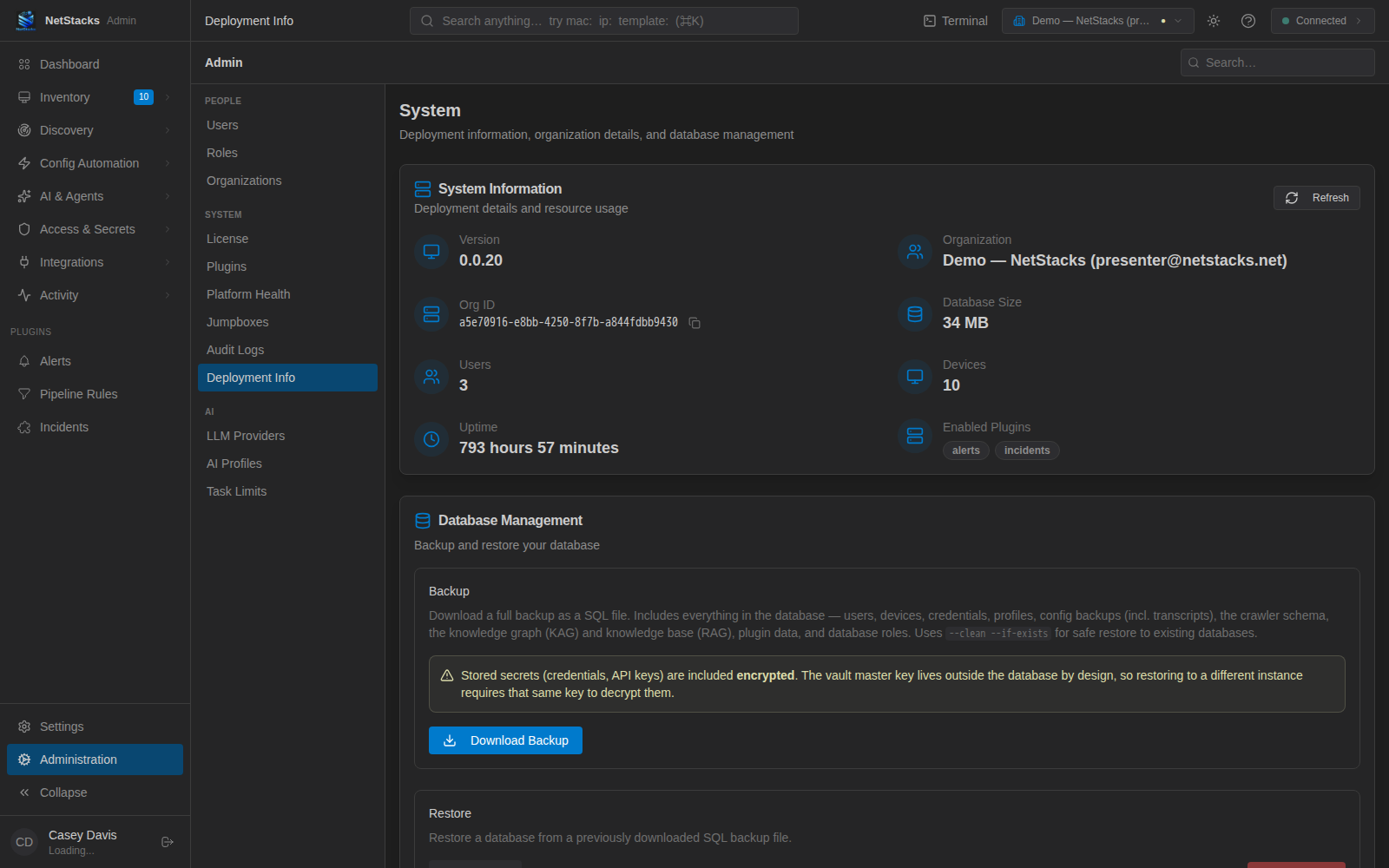
The backup does not include .env or the netstacks_data volume (TLS CA and certificates, plugin storage). Restoring onto a new server only gives you working credentials if you also use the same VAULT_MASTER_KEY. Store .env somewhere safe, separately from the backups.
Backups are not scheduled automatically. Download one before upgrades and on a regular basis.
Web Terminal Local Shell (Jumpbox) Problems
In enterprise mode, a new Local Shell tab opens a shell in a per-user Docker container on the Controller (the terminal prints Starting jumpbox container...). If it never starts:
- The
apicontainer needs the Docker socket and the Docker group. Check thatDOCKER_GIDin.envmatches the socket's group:stat -c '%g' /var/run/docker.sock, then rundocker compose up -d api. - The jumpbox image must be pullable from the Controller host. Check the image and registry credentials in Settings → Jumpboxes.
- Administration → Jumpboxes lists each user's container with Stop, Restart, Start and Remove actions. Removing a broken container lets the next Local Shell create a fresh one.
Session Sharing Links
- Session sharing needs Valkey. Without it the Controller answers
Session sharing requires Valkey. The bundled compose file includes thevalkeyservice; check it is running. - Share links are built from the Advertise Address in Settings → HA / Clustering. Set it to the URL users reach the Controller on (for example
https://controller.example.com:3000) and restart theapicontainer. Otherwise links point at an address viewers cannot open.
License Activation
Administration → License → Activate License contacts the NetStacks license server at www.netstacks.net, so the Controller needs outbound HTTPS access to it. The Controller also re-validates the license every 24 hours. If validation fails, the status changes to Grace Period and the License page shows a banner. Restore outbound access before the grace period runs out.
Only Team and Enterprise license keys can be activated on a Controller. For license questions, contact us.